> ## Documentation Index
> Fetch the complete documentation index at: https://docs.ouraicalling.com/llms.txt
> Use this file to discover all available pages before exploring further.
# Product tour
> A visual tour of the Famulor workspace, from your first assistant to daily operations
This tour shows the main areas your team can use in Famulor. What you see in your own workspace depends on your role and the features included in your subscription.
Use the sidebar in Famulor to move between these areas. You can return to the dashboard at any time for a quick overview.
## Dashboard and Milian
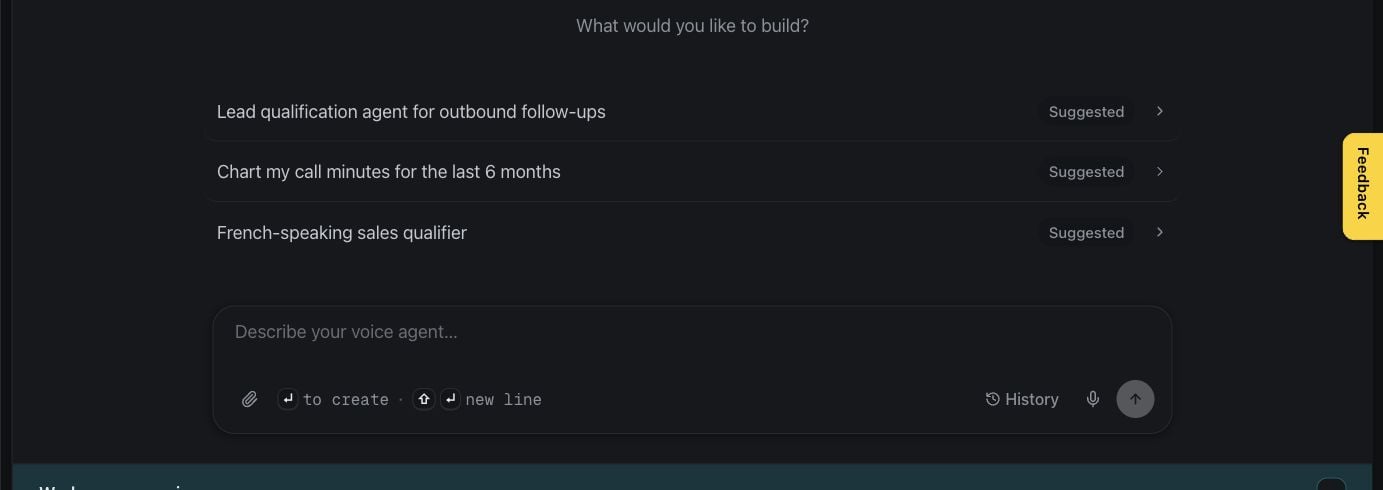
The dashboard brings your most important activity, shortcuts, and recent results together. Milian, the in-app copilot, can help you navigate the product and work with your workspace using your existing access.
 ## Build your assistants
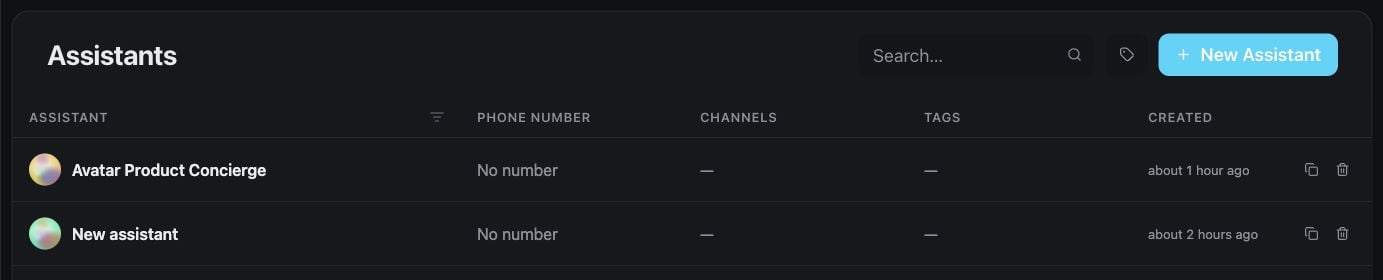
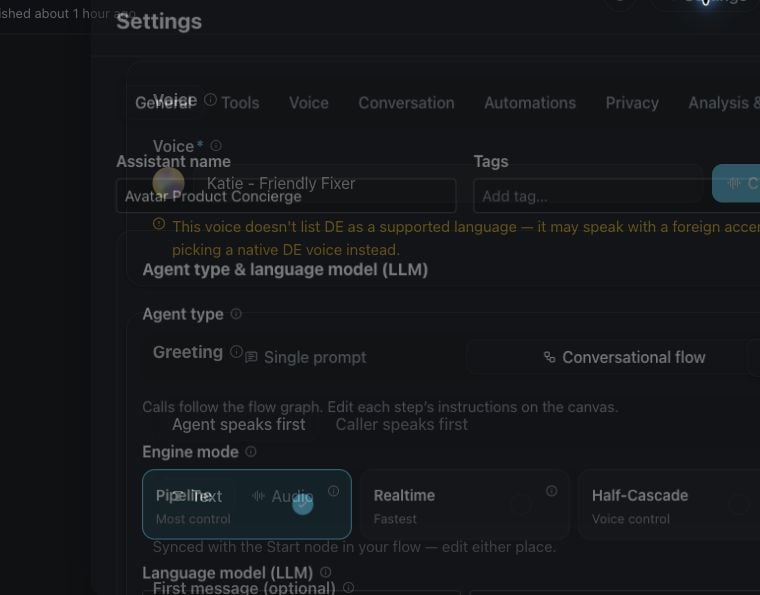
The **Assistants** page is the home for every voice and messaging assistant in your workspace. Create a new assistant, open an existing one, or continue refining its behavior.
## Build your assistants
The **Assistants** page is the home for every voice and messaging assistant in your workspace. Create a new assistant, open an existing one, or continue refining its behavior.
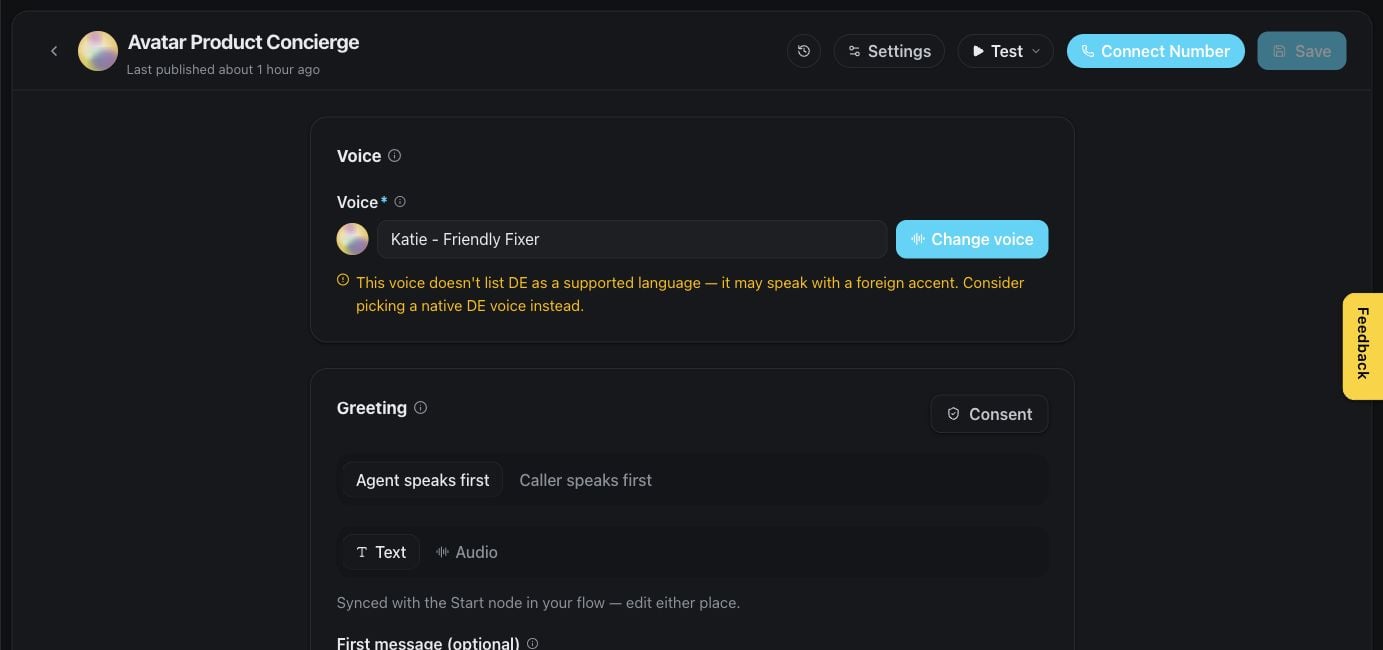
 In the editor, shape the greeting and conversation instructions, test the experience, and save changes from one place.
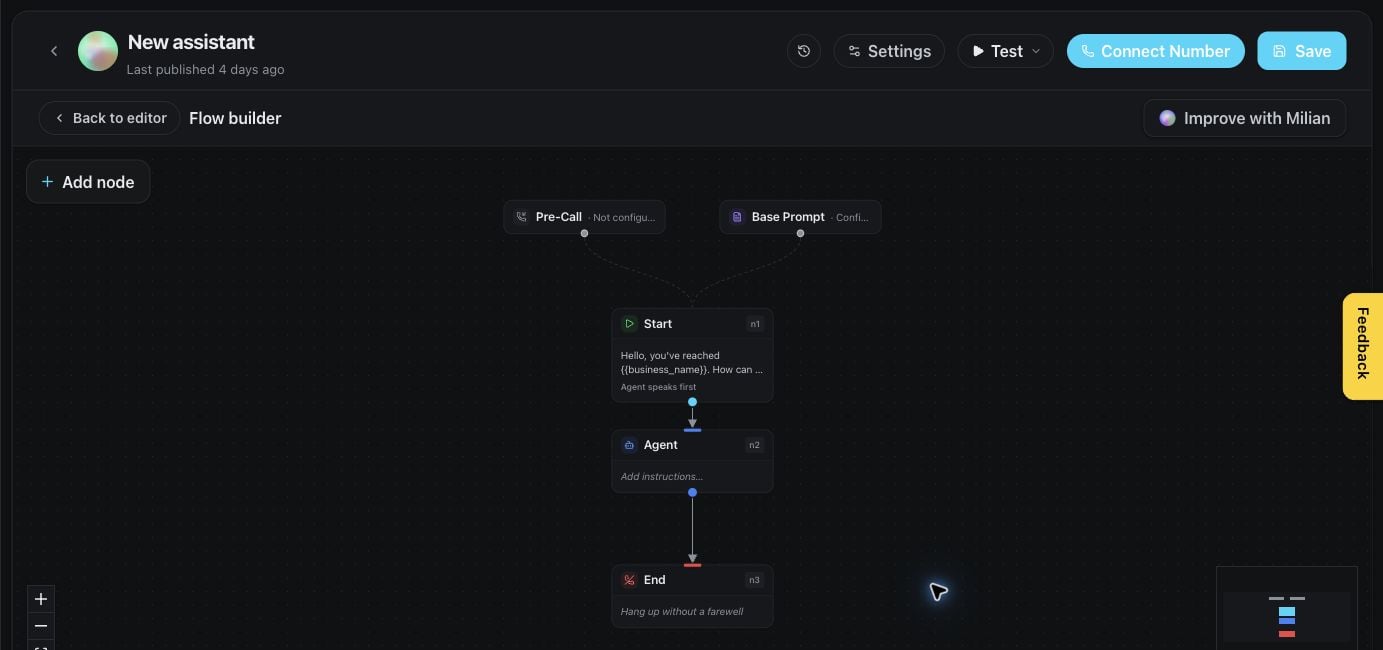
 For structured conversations, the visual flow builder lets you connect steps, branches, actions, and handoffs.
 Assistant settings collect the detailed choices for voice, language, behavior, tools, knowledge, and connected channels. Available options can vary by workspace.
 ## Review conversations
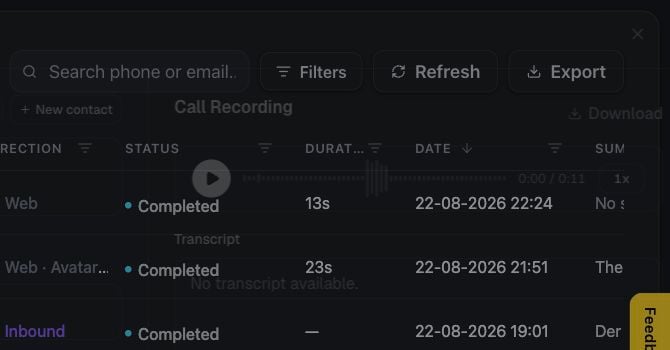
**History** is the shared record of calls and conversations. Filter the list to find a specific interaction, then open it for the full context.
## Review conversations
**History** is the shared record of calls and conversations. Filter the list to find a specific interaction, then open it for the full context.
 The detail view brings the transcript, outcome, collected information, and available media together, making it easier to review performance or follow up.
 ## Reuse routines
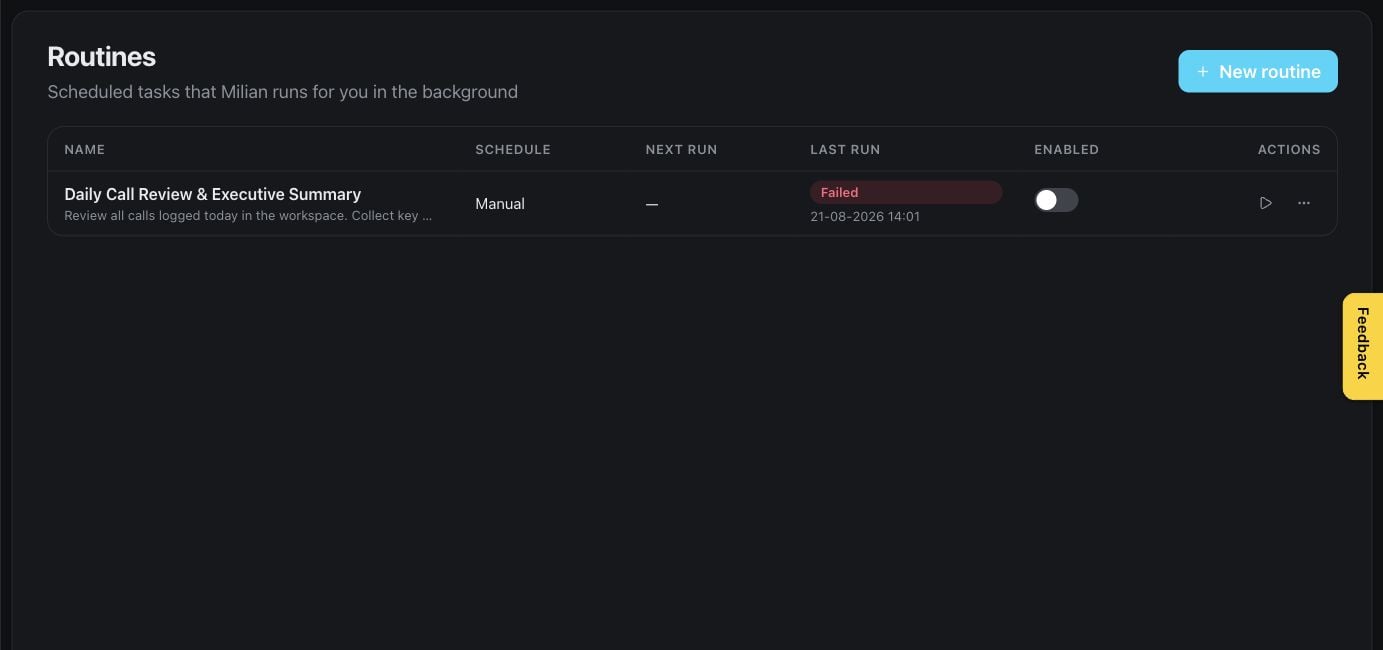
Routines package repeatable conversation behavior so it can be maintained once and reused across assistants. They are useful for common tasks such as qualification, booking, or escalation.
## Reuse routines
Routines package repeatable conversation behavior so it can be maintained once and reused across assistants. They are useful for common tasks such as qualification, booking, or escalation.
 ## Know and manage your audience
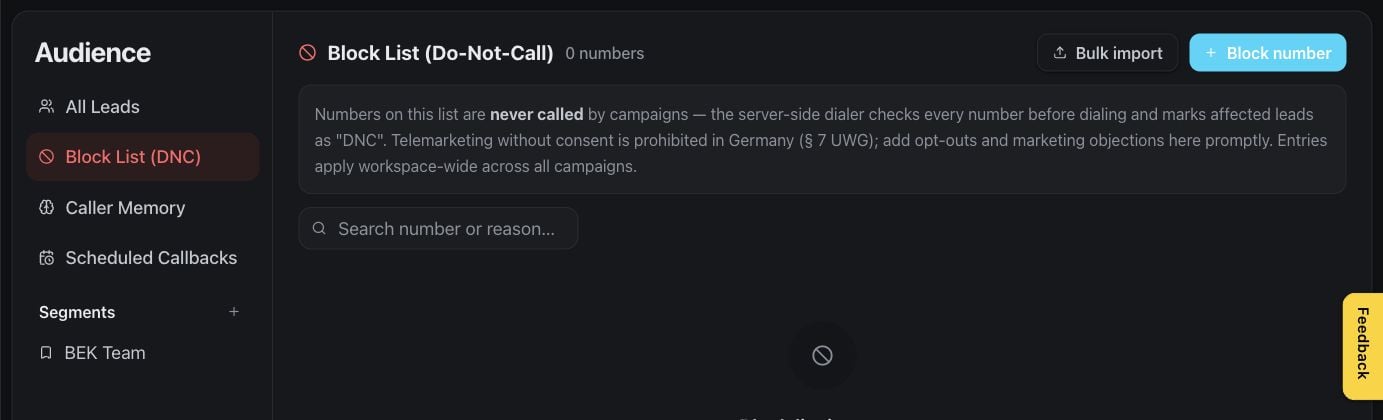
The **Audience** area brings contacts and the operational records around them into one place.
## Know and manage your audience
The **Audience** area brings contacts and the operational records around them into one place.
 The do-not-contact list helps your team honor contact preferences. Authorized team members can review and maintain entries before outreach begins.
 Memory records let you review what assistants may remember about a contact and manage that information when needed.
 Callbacks keep requested follow-ups visible so they can be completed at the right time.
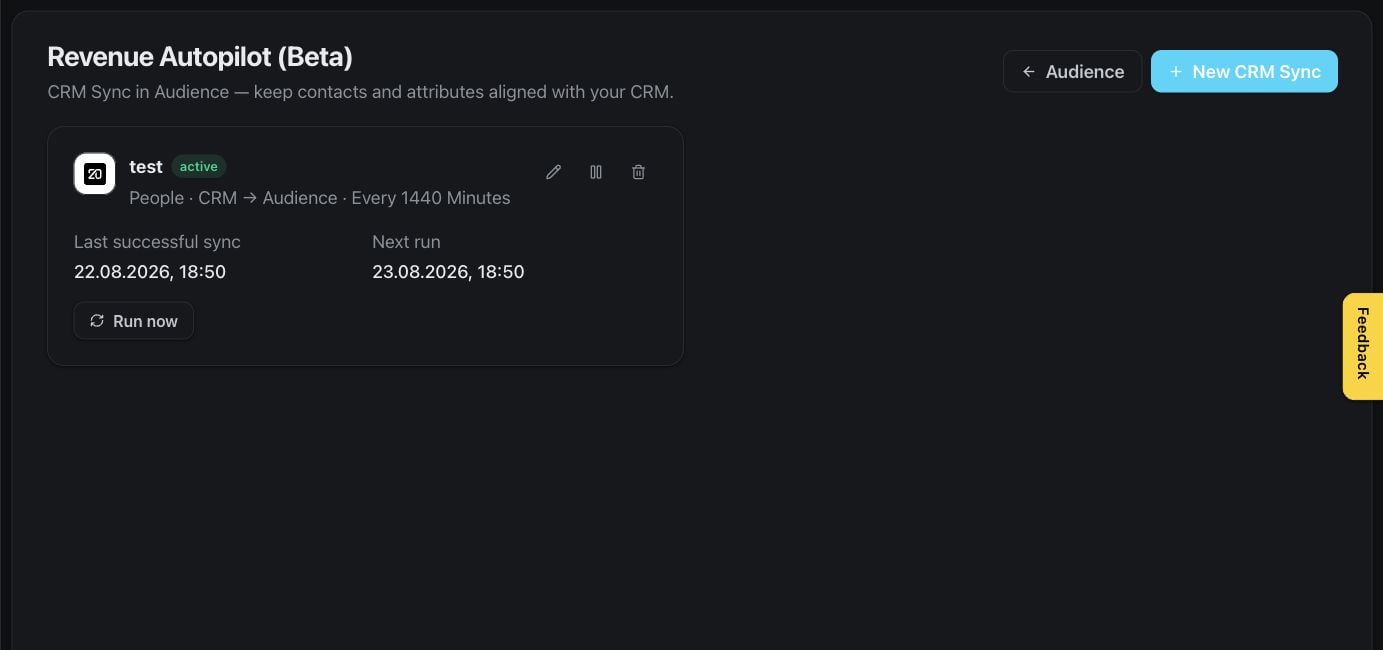
 CRM sync connects contact activity with another business system. This page appears only when the feature is available to your workspace and your role permits configuration.
 ## Run campaigns
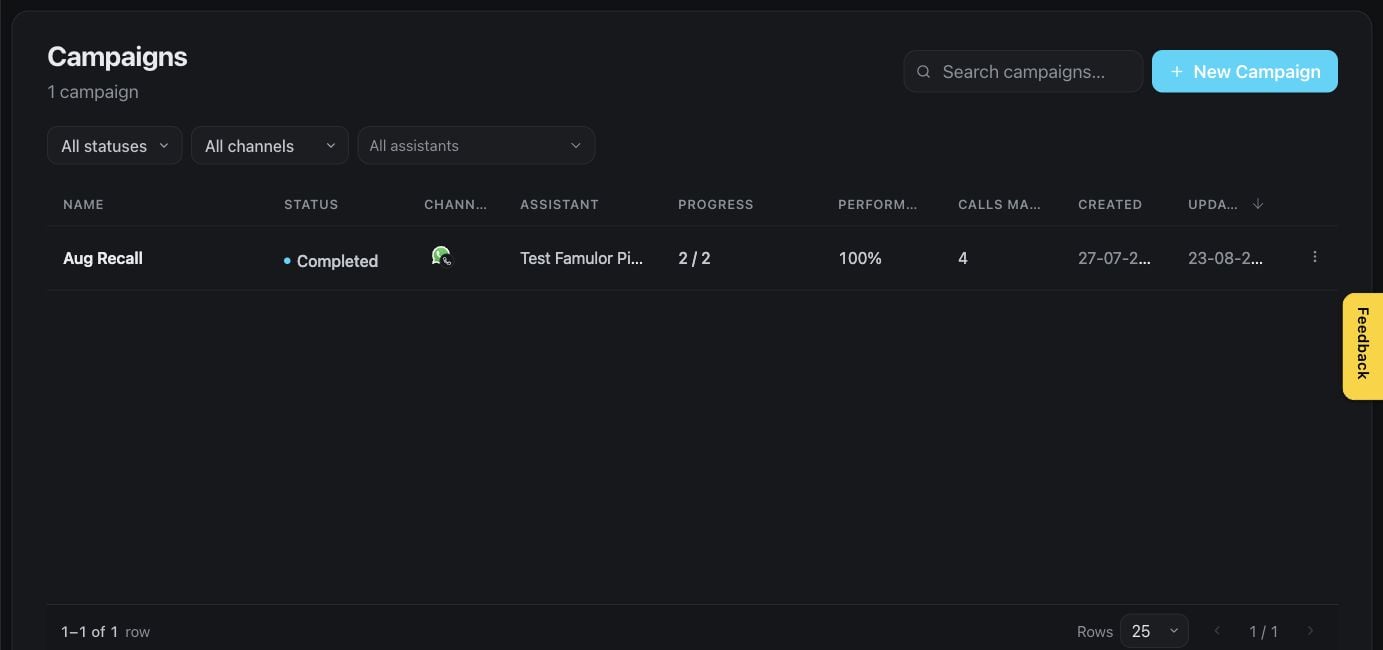
Campaigns coordinate outbound work: choose an assistant and audience, prepare the schedule, and follow progress from one place.
## Run campaigns
Campaigns coordinate outbound work: choose an assistant and audience, prepare the schedule, and follow progress from one place.
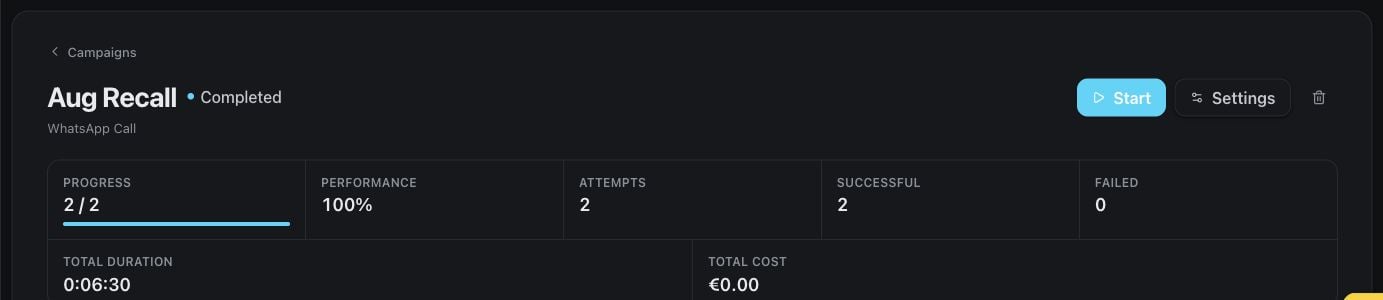
 The campaign detail view focuses on setup, current status, and results for one campaign.
 The board view groups campaign work by status for a fast operational overview.
 ## Improve quality with AI QA
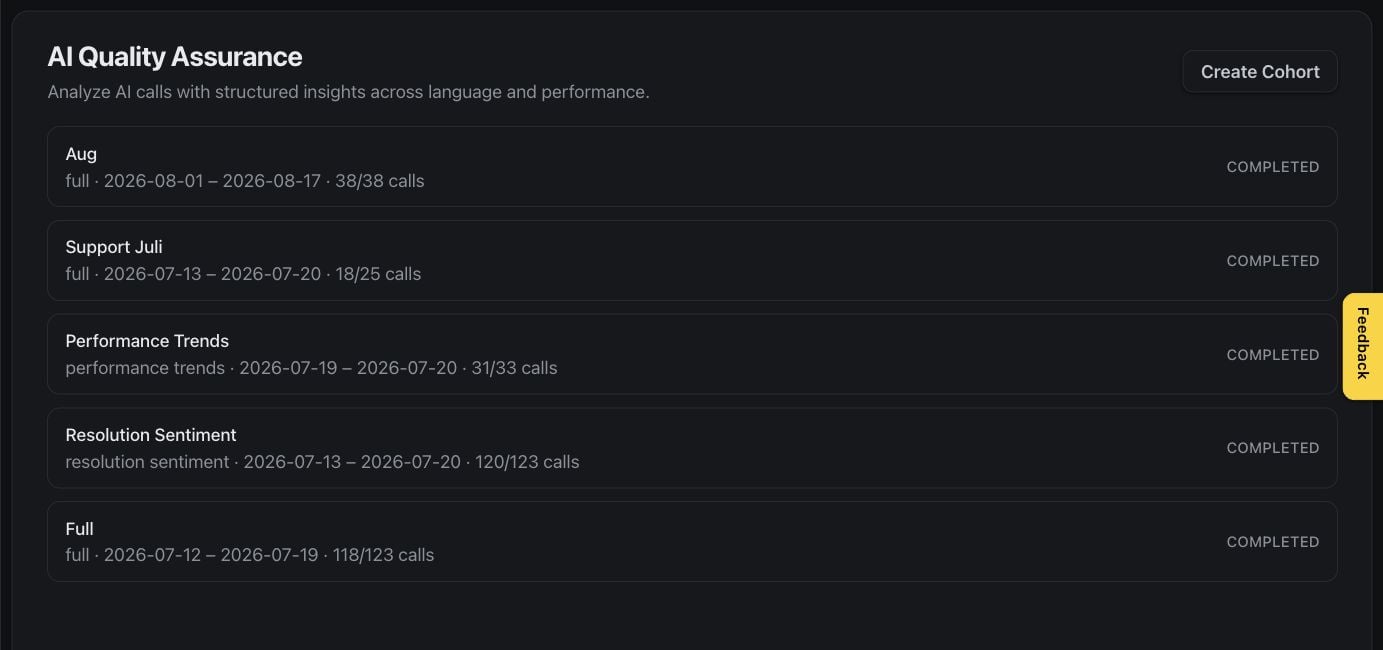
AI QA helps teams evaluate conversations consistently, find patterns, and focus coaching or assistant improvements where they matter most. Availability depends on your subscription.
## Improve quality with AI QA
AI QA helps teams evaluate conversations consistently, find patterns, and focus coaching or assistant improvements where they matter most. Availability depends on your subscription.
 ## Build a knowledge base
Add documents that assistants can use when answering questions. Keep source material focused and current for the most reliable answers.
## Build a knowledge base
Add documents that assistants can use when answering questions. Keep source material focused and current for the most reliable answers.
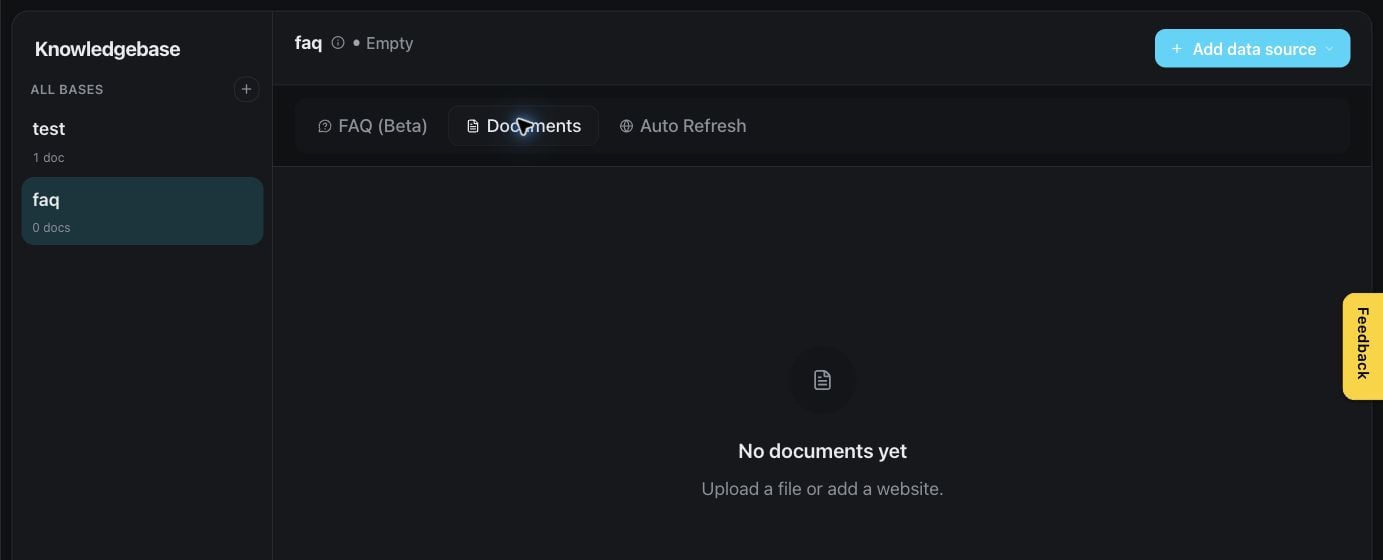 Auto refresh keeps supported sources up to date on a schedule, reducing manual maintenance.
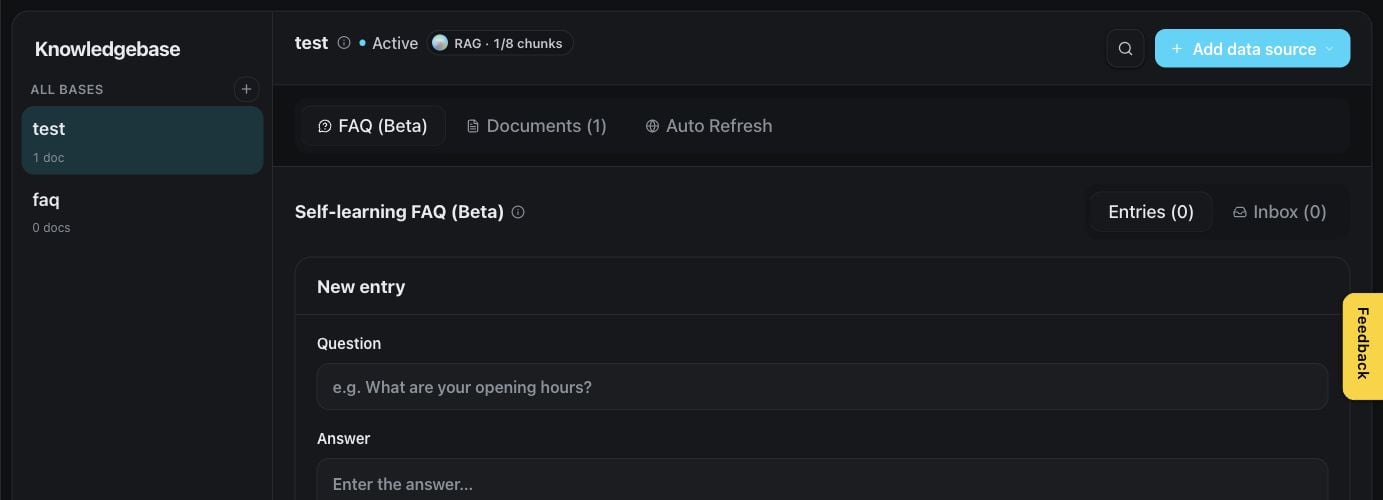
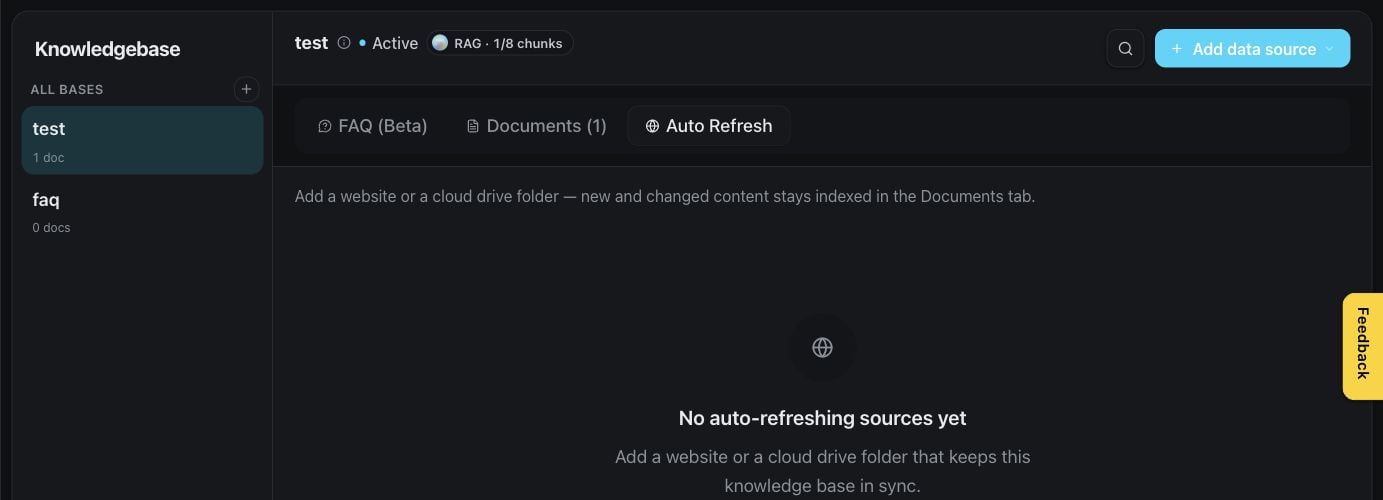 FAQs are ideal for concise, curated question-and-answer pairs that should be easy for an assistant to retrieve.
 ## Extend assistants with tools
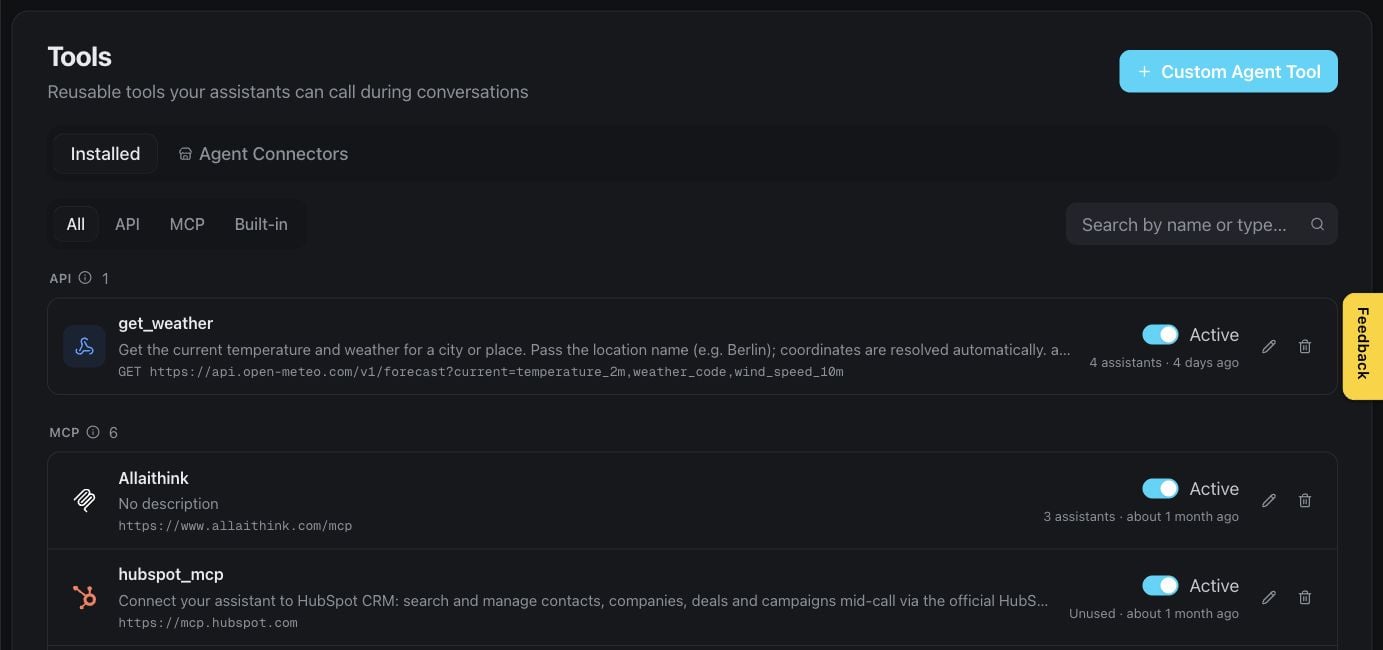
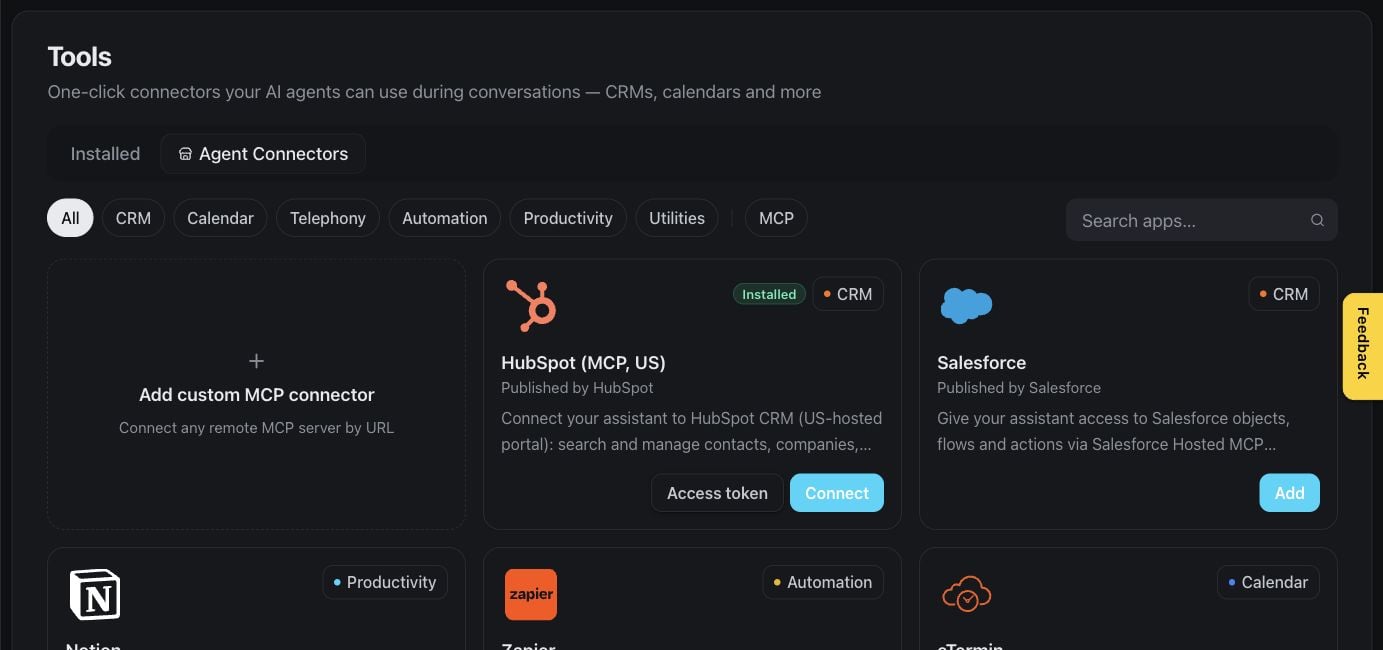
The installed view shows the capabilities already available in your workspace and where they can be managed.
## Extend assistants with tools
The installed view shows the capabilities already available in your workspace and where they can be managed.
 The connectors catalog lets authorized users add supported business services. Some connectors may be optional or require separate access with the connected service.
 ## Manage bookings
The bookings list gives your team a single view of appointments created through assistants and connected calendars.
## Manage bookings
The bookings list gives your team a single view of appointments created through assistants and connected calendars.
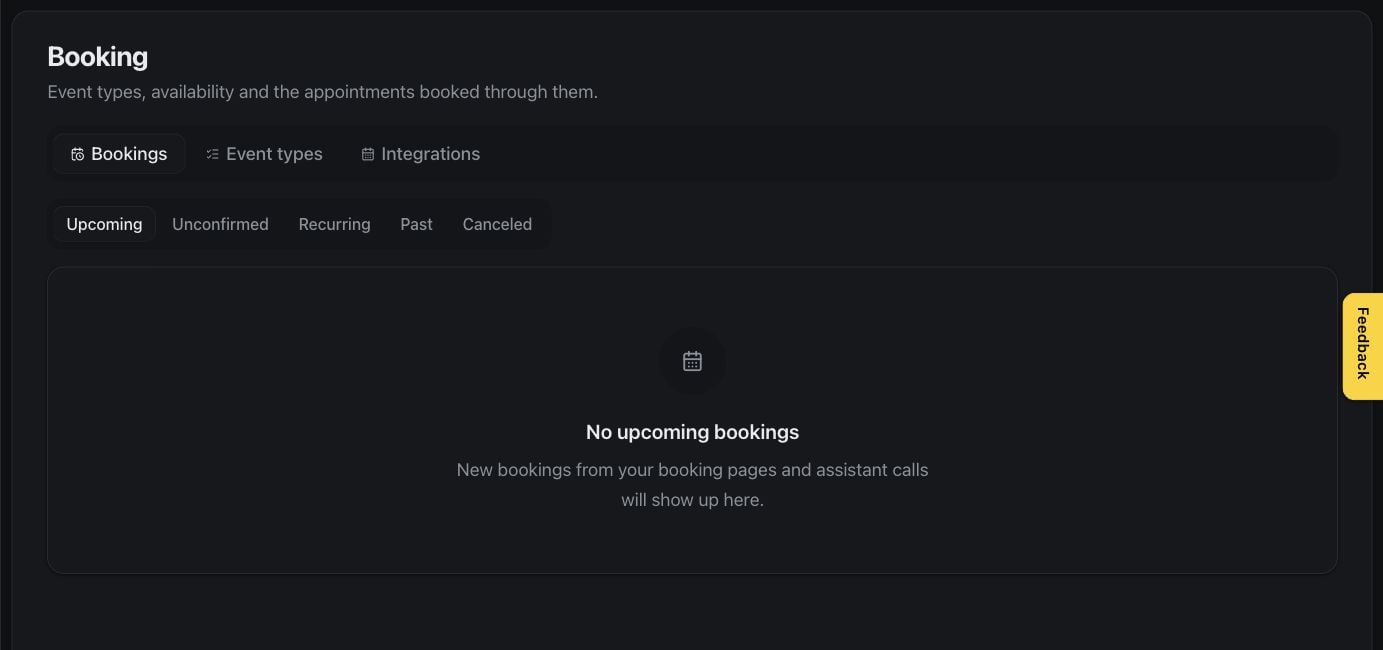 Event types define what can be booked, including duration and availability rules.
 Calendars determine where availability comes from and where confirmed appointments are stored.
 Booking integrations connect supported scheduling services. These settings are visible only to roles that can manage workspace connections.
 ## Automate work
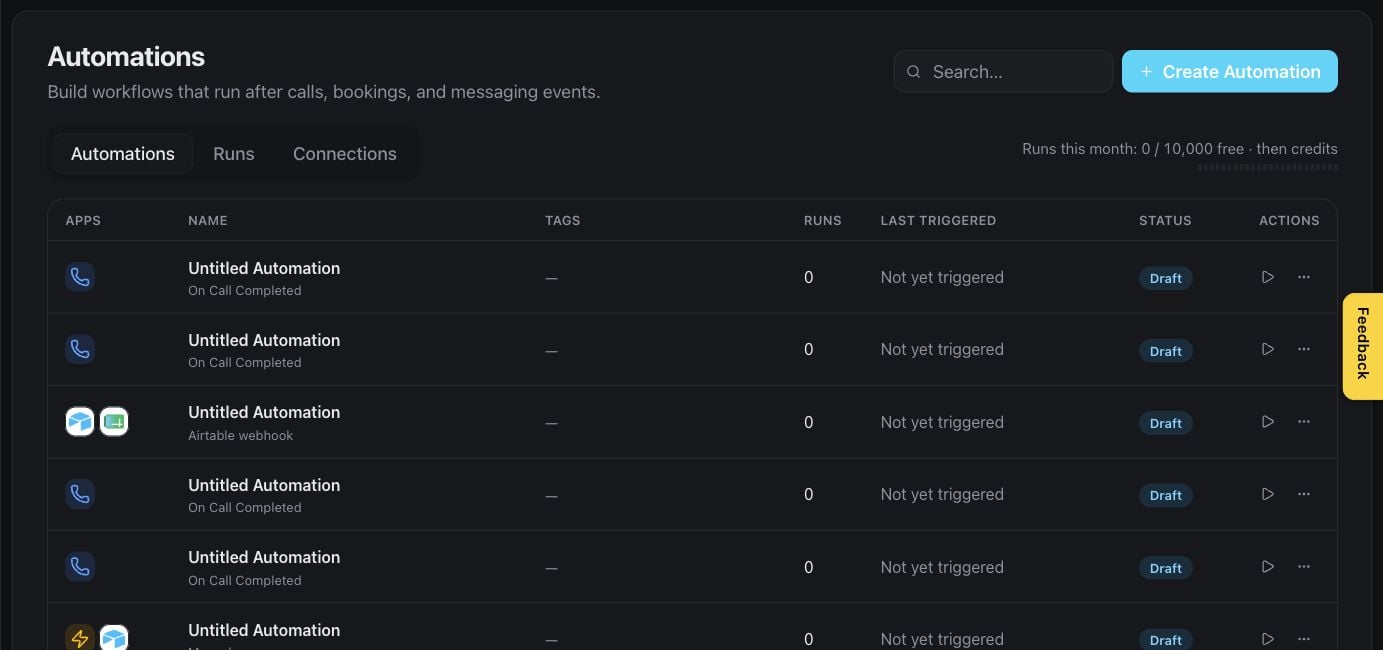
Automations turn recurring work into repeatable processes that can react to events and coordinate follow-up actions.
## Automate work
Automations turn recurring work into repeatable processes that can react to events and coordinate follow-up actions.
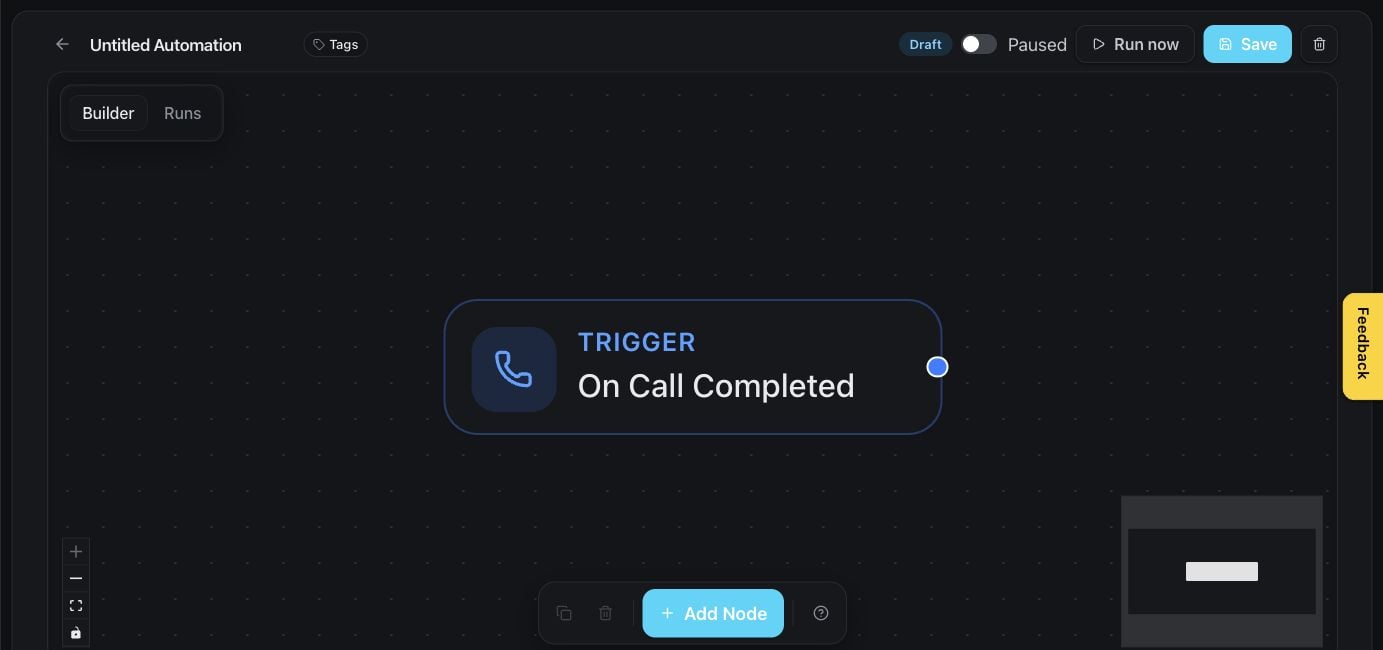
 The builder provides a visual workspace for arranging triggers, decisions, and actions.
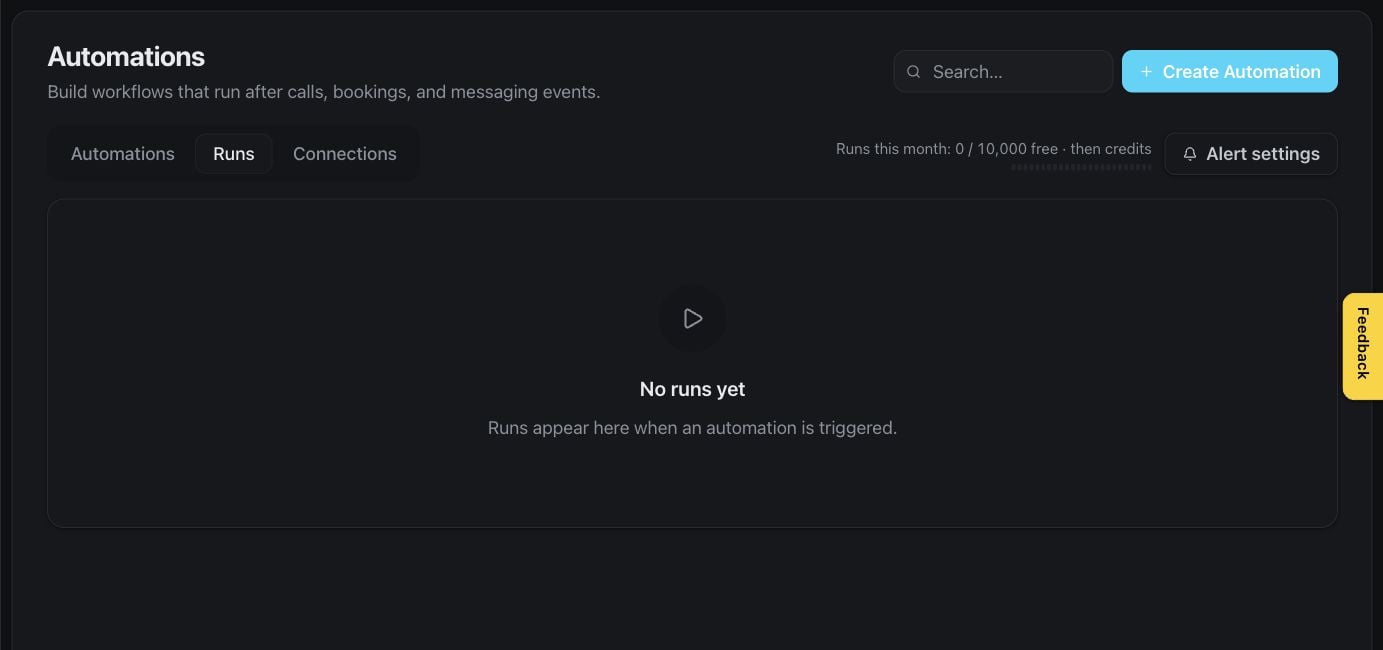
 Run history shows what happened during each execution and helps authorized users investigate unsuccessful steps.
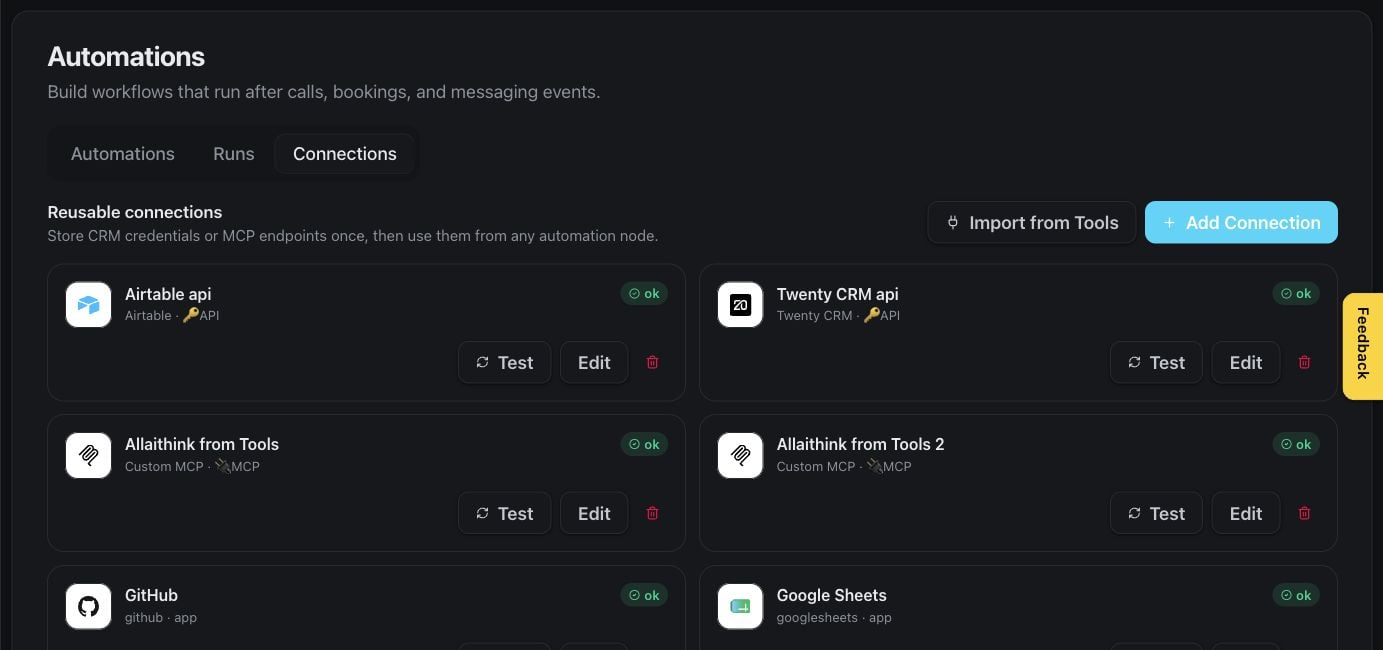
 Connections are the accounts and services automations can use. Only workspace roles with configuration access can add or change them.
 ## Understand usage and results
The **Usage** page helps workspace owners and authorized team members understand consumption over time and the balance available to the workspace.
## Understand usage and results
The **Usage** page helps workspace owners and authorized team members understand consumption over time and the balance available to the workspace.
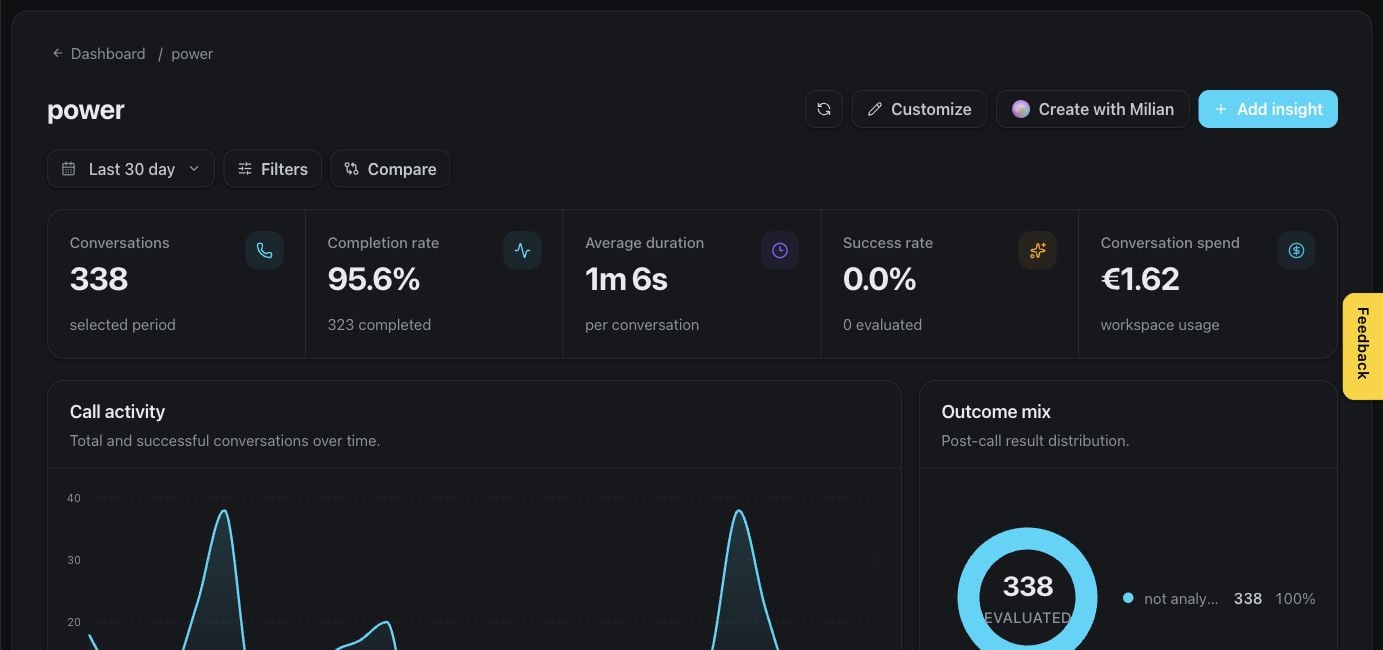
 Custom dashboards turn workspace data into focused views for your team. Natural-language creation and advanced analytics may depend on your subscription.
 ## Configure your workspace
Settings are organized into focused panels. The panels available to you depend on your role and subscription.
### Workspace, team, and preferences
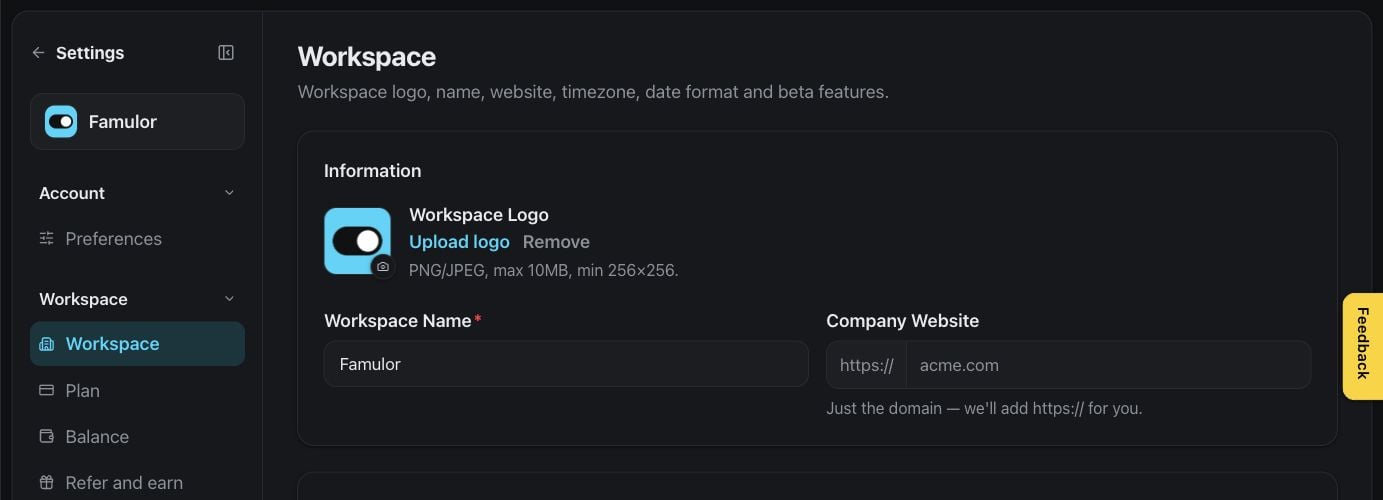
Workspace settings cover the name and shared identity used by your team.
## Configure your workspace
Settings are organized into focused panels. The panels available to you depend on your role and subscription.
### Workspace, team, and preferences
Workspace settings cover the name and shared identity used by your team.
 Team settings let owners and authorized admins invite members and manage their access.
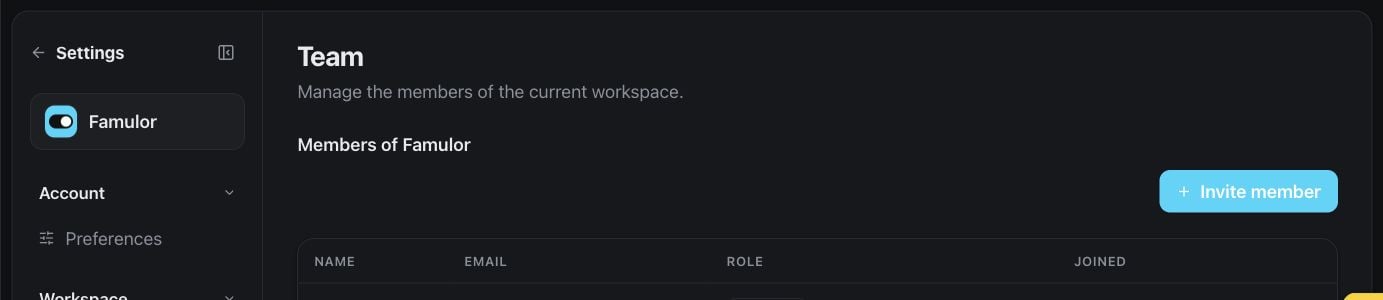 Preferences personalize the product experience, including appearance and other user-level choices.
 ### Subscription, balance, usage limits, and referrals
The plan page summarizes the workspace subscription and available options.
### Subscription, balance, usage limits, and referrals
The plan page summarizes the workspace subscription and available options.
 Balance settings help owners monitor available credit and manage supported payment preferences.
 Limits make usage boundaries visible and help teams understand which capabilities are available.
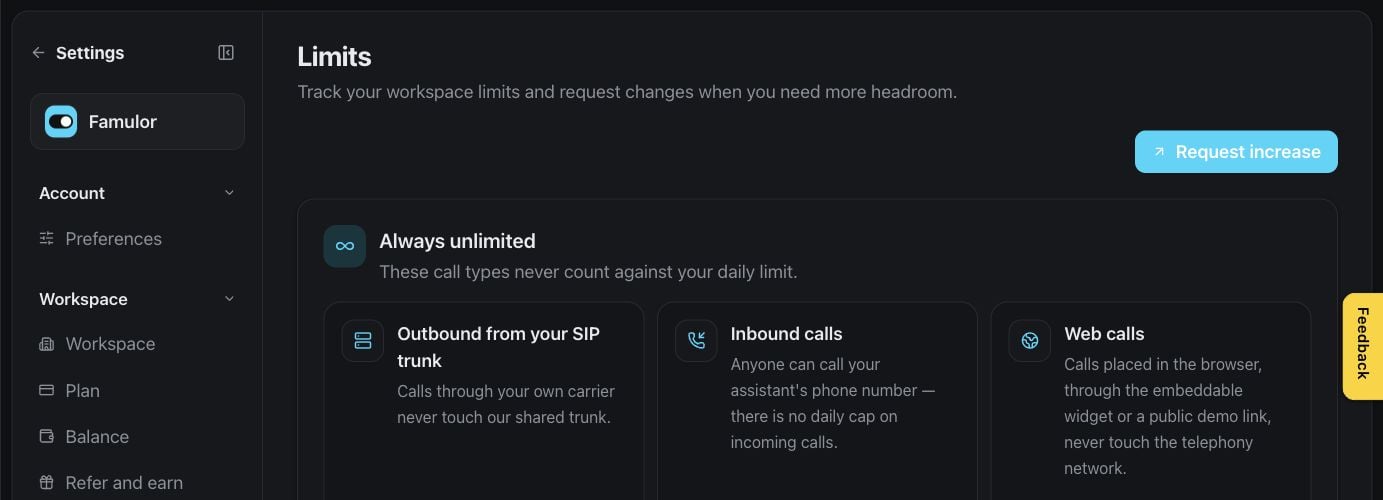 The referral panel shows your referral link and earned benefits where the program is available.
 ### Phone, messaging, and email
Numbers settings are where authorized users manage phone numbers and their assignments.
### Phone, messaging, and email
Numbers settings are where authorized users manage phone numbers and their assignments.
 Messaging channels bring supported text-based communication into the workspace.
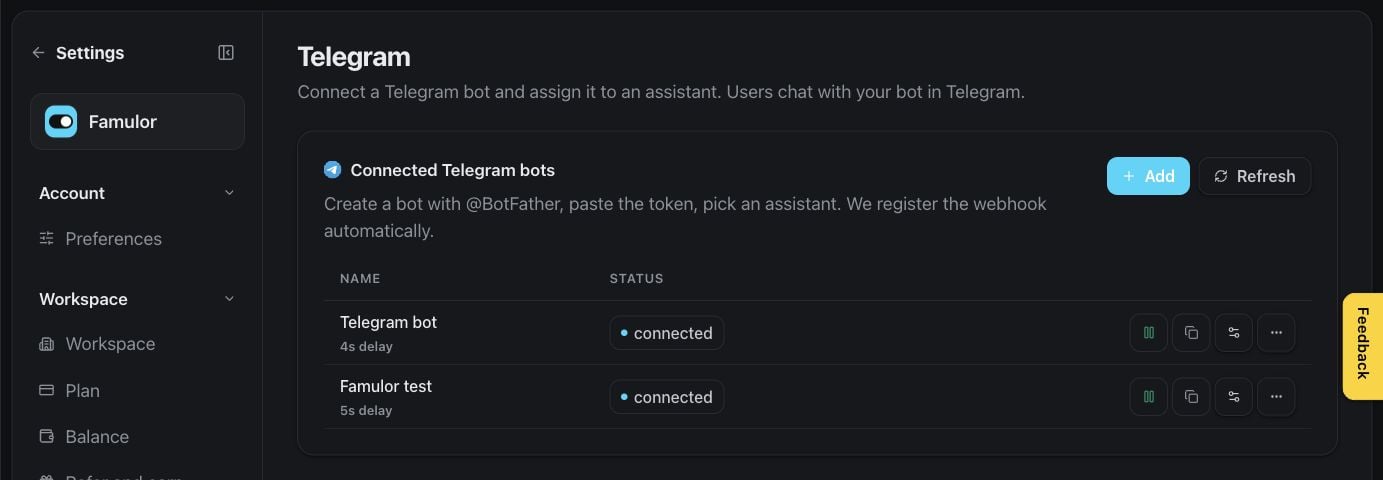 WhatsApp settings guide authorized users through connecting and managing the channel when available.
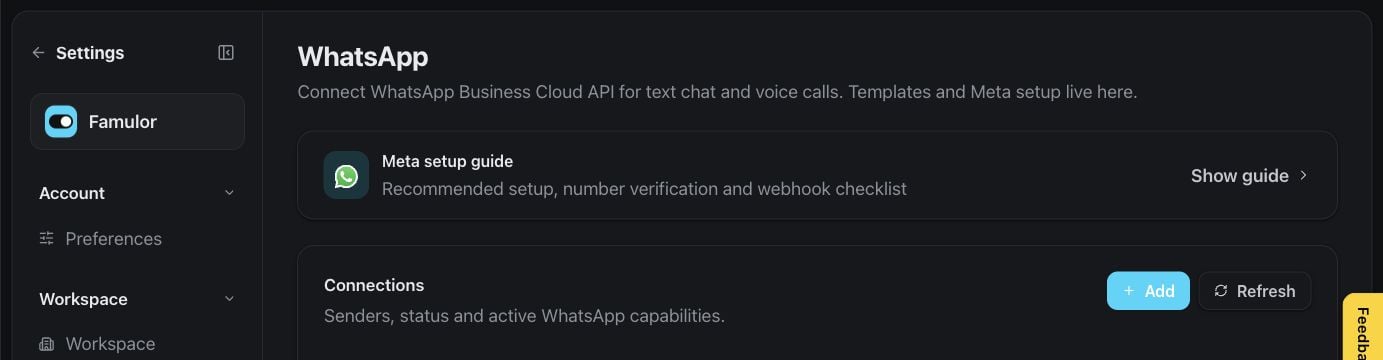 Verification helps teams confirm the senders or destinations required for supported communications.
 Email settings control the workspace's supported email experience and sender details.
 ### Memory, data, and contact controls
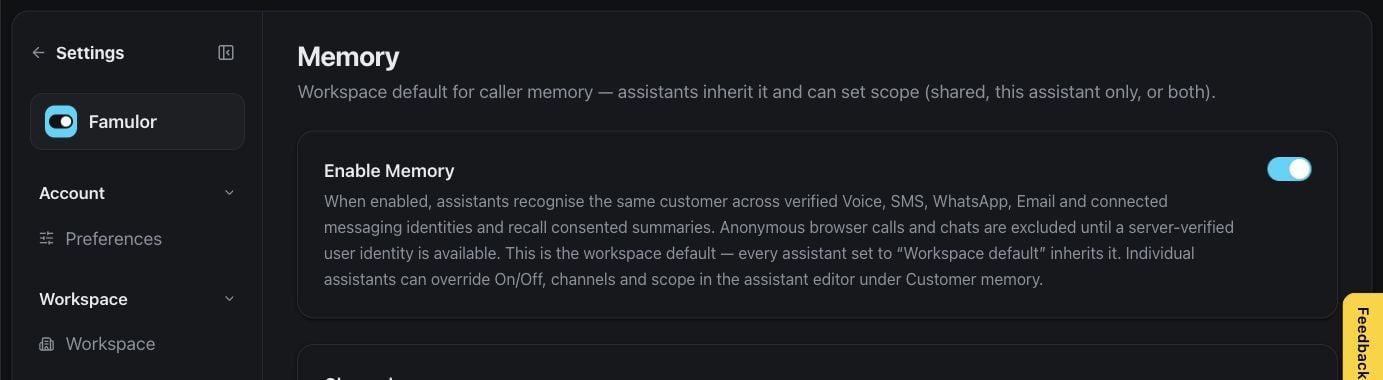
Memory settings define the workspace-wide behavior and visibility of assistant memory.
### Memory, data, and contact controls
Memory settings define the workspace-wide behavior and visibility of assistant memory.
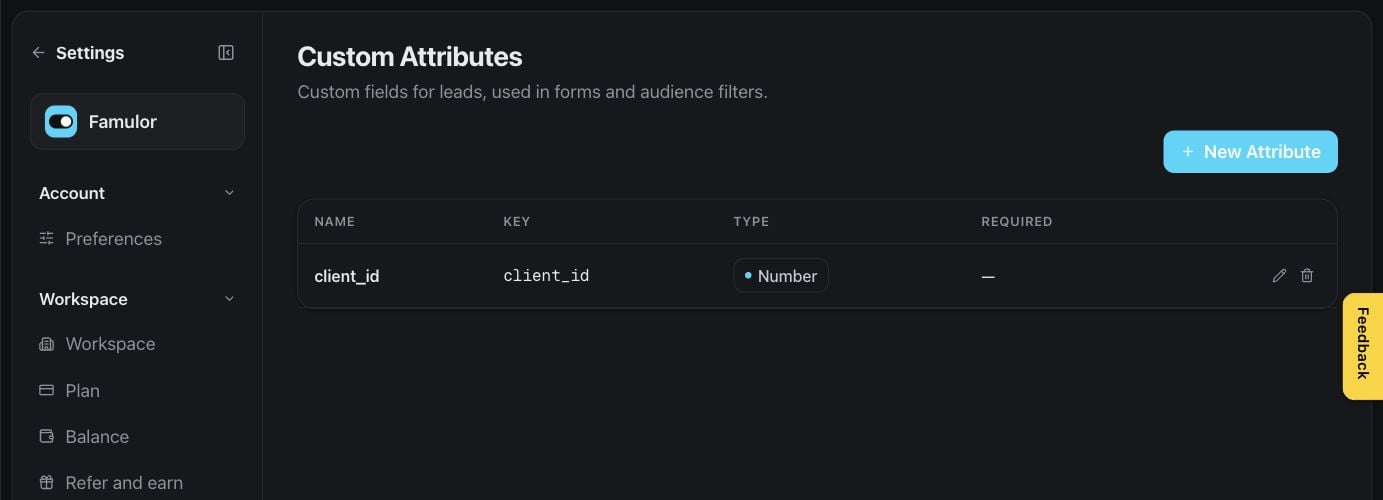
 Custom attributes give teams a consistent structure for the information stored with contacts and conversations.
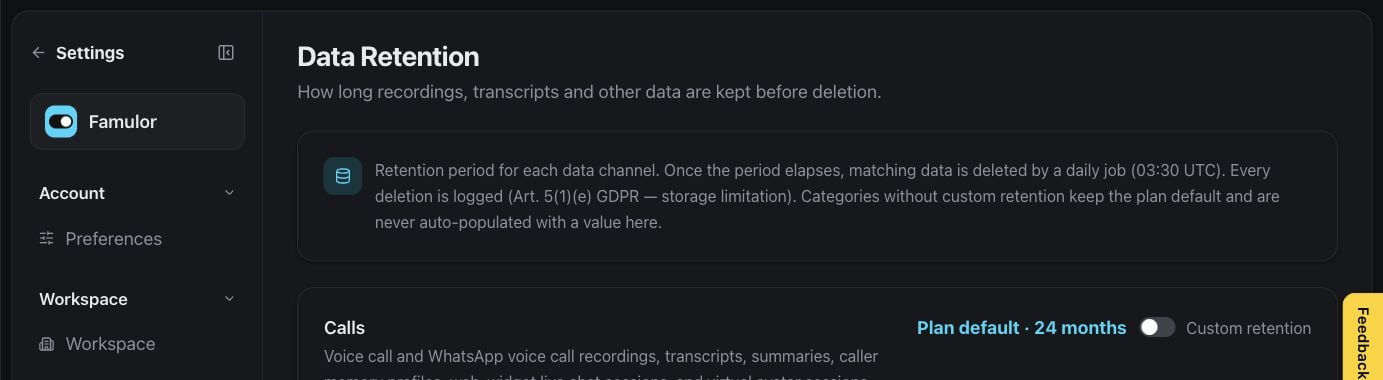
 Data retention lets authorized admins choose how long supported workspace data should be kept.
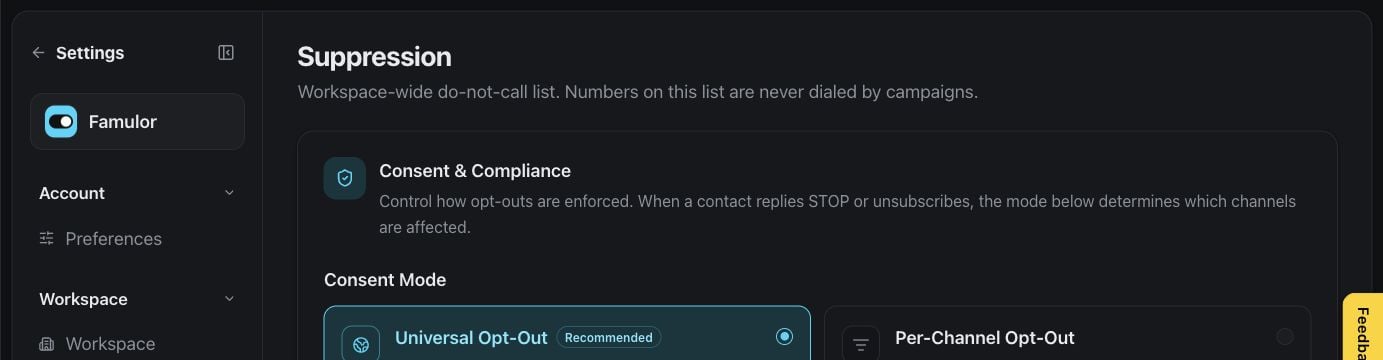
 Suppression settings centralize contact restrictions and help prevent unwanted outreach.
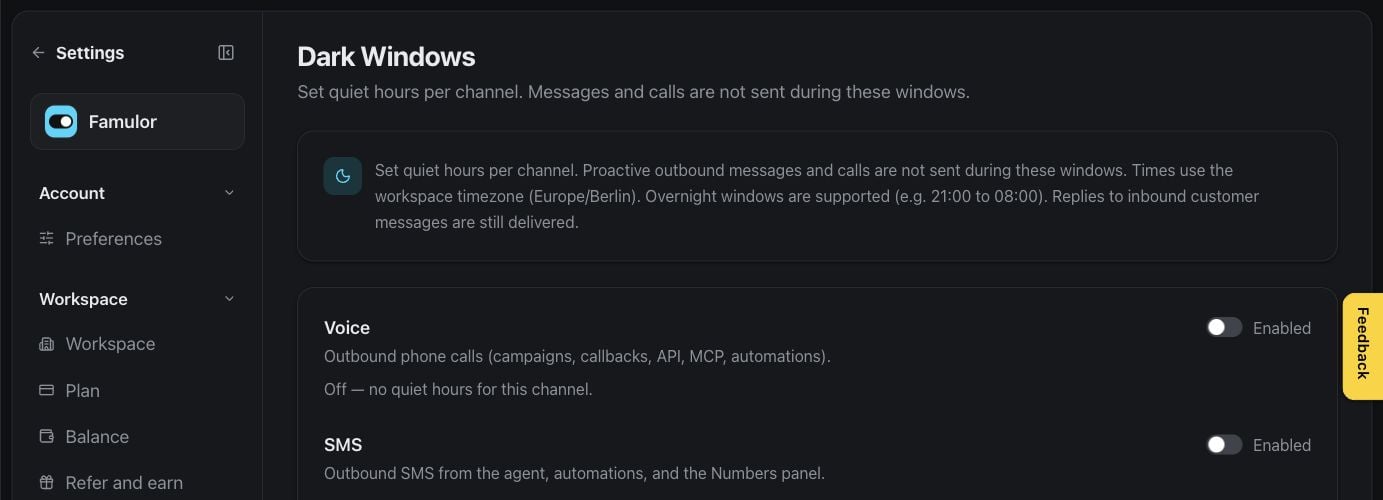
 Dark windows define times when automated contact should pause, helping teams respect local schedules.
 ### Web experiences and optional features
Web widget settings customize the assistant experience embedded on your website.
### Web experiences and optional features
Web widget settings customize the assistant experience embedded on your website.
 Optional connectors are shown only to workspaces that can try them. Workspace admins decide whether to enable them for the team.
 ### Developer access and accountability
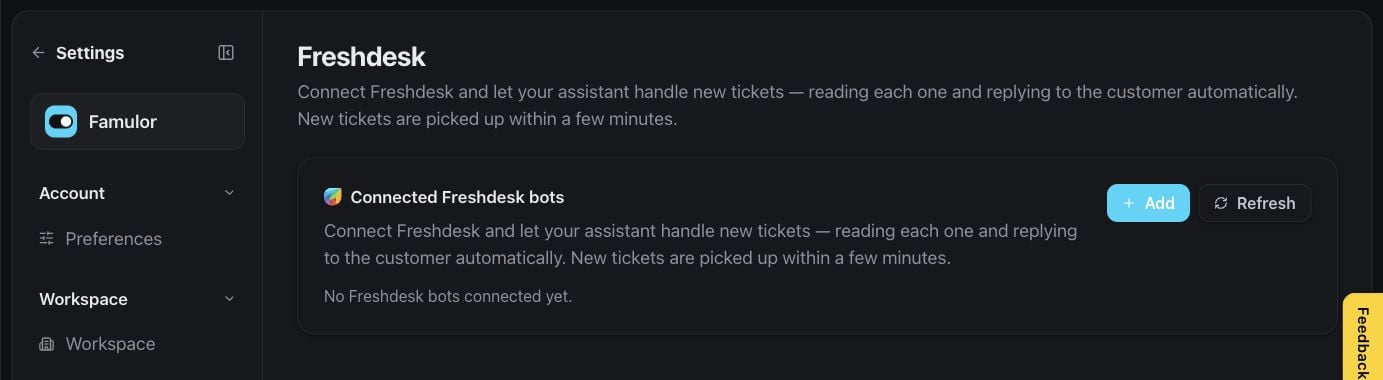
The developer access panel is for customers who want to connect their own applications or compatible assistants to Famulor. Treat credentials as secrets and share them only with trusted team members.
### Developer access and accountability
The developer access panel is for customers who want to connect their own applications or compatible assistants to Famulor. Treat credentials as secrets and share them only with trusted team members.
 The audit log helps authorized admins understand important workspace changes and who made them.
 ## Create WhatsApp templates
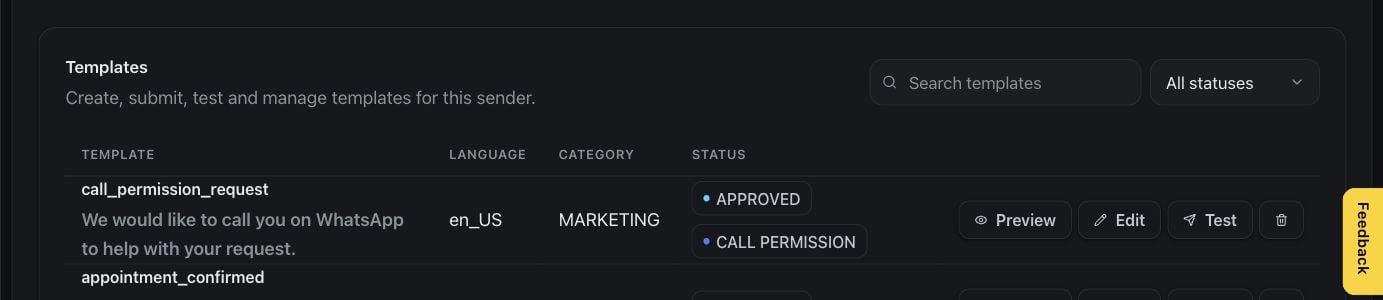
Templates let teams prepare approved, reusable messages for supported WhatsApp conversations. Access depends on channel setup and your role.
## Create WhatsApp templates
Templates let teams prepare approved, reusable messages for supported WhatsApp conversations. Access depends on channel setup and your role.
 ## Operate a white-label business
The following area is available only to workspace owners and authorized admins with White Label access. Regular workspace members and white-label customers do not see these pages.
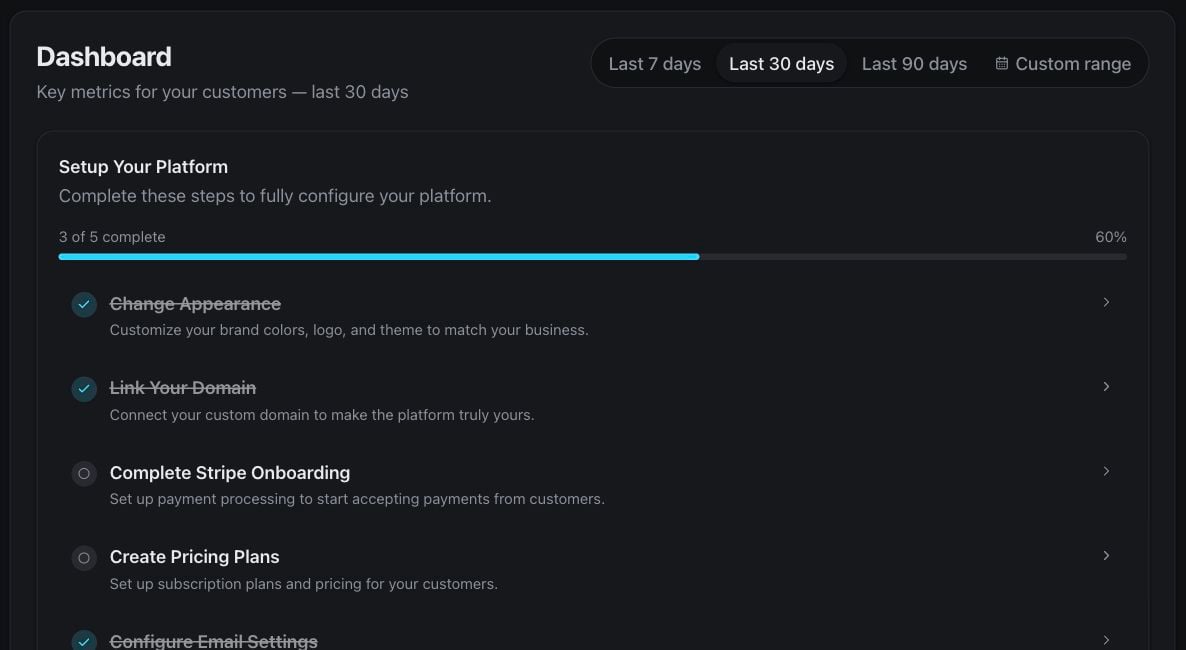
The white-label dashboard provides an overview of customer activity and the parts of your branded service that may need attention.
## Operate a white-label business
The following area is available only to workspace owners and authorized admins with White Label access. Regular workspace members and white-label customers do not see these pages.
The white-label dashboard provides an overview of customer activity and the parts of your branded service that may need attention.
 The customers list helps authorized admins find and manage the customer workspaces associated with their service.
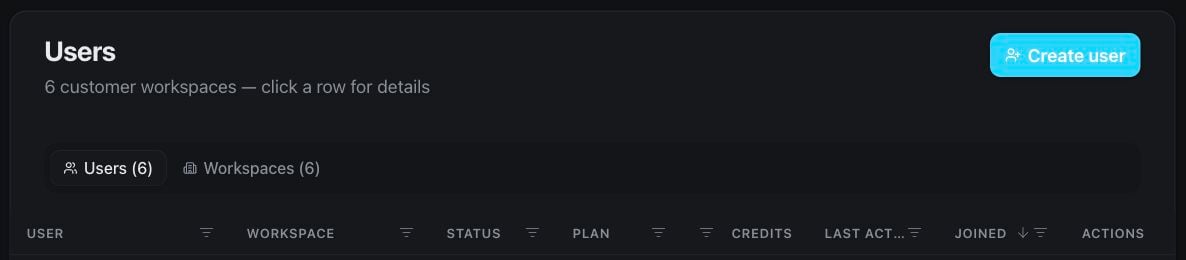 Open a customer to review the information and actions relevant to that workspace.
 Plans define the packages you present to your own customers.
 Default limits provide sensible starting boundaries for newly created customer workspaces.
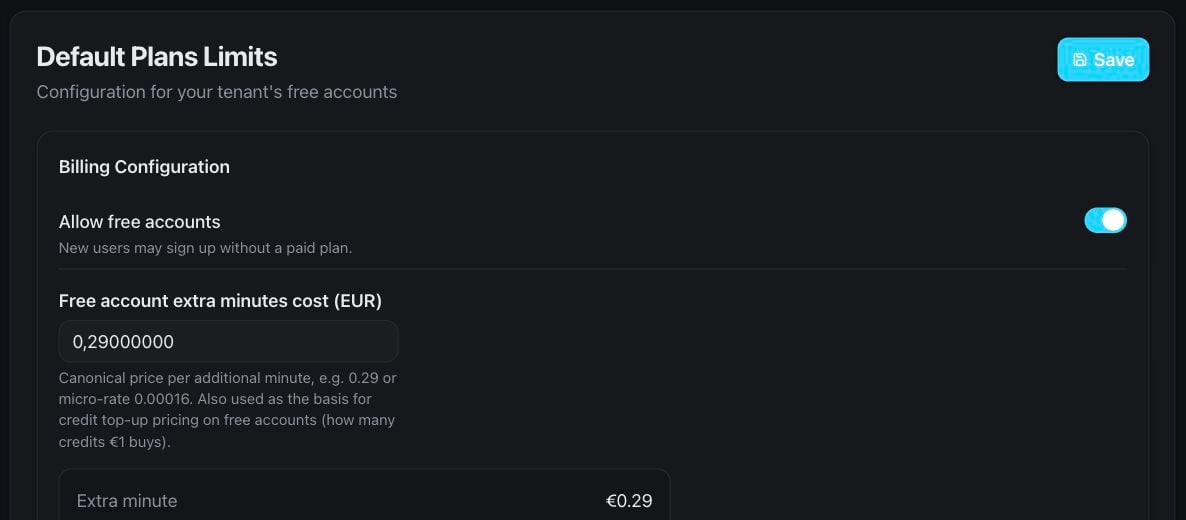 Usage pricing controls how usage is presented and charged within your branded offering.
 Billing platform settings connect the supported billing experience for your customers. Access is restricted to authorized admins.
 Voice settings let you curate the choices offered to customer workspaces.
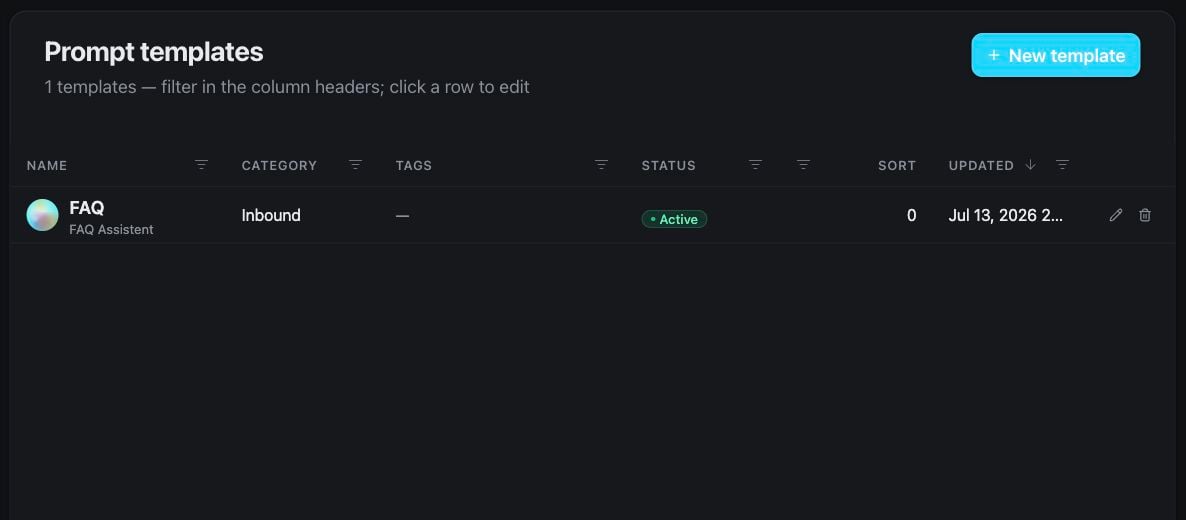
 Prompt templates give customers a branded starting point for common assistant use cases.
 History gives authorized admins a support-oriented view of customer conversations while respecting the access granted to their role.
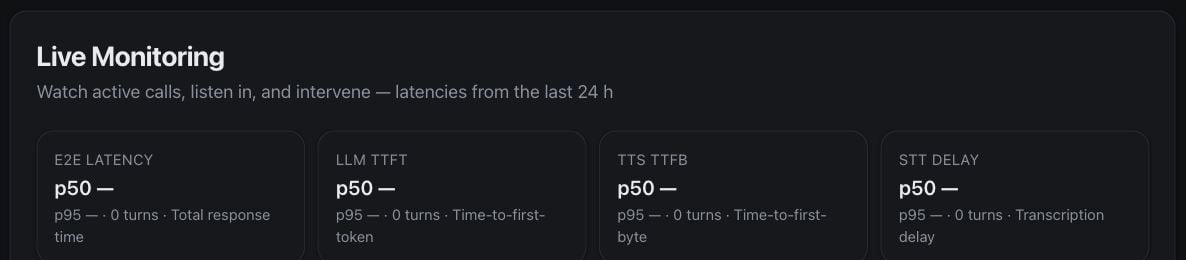
 Live monitoring is an optional operational view for authorized white-label admins. Use it only in line with your organization’s privacy and access policies.
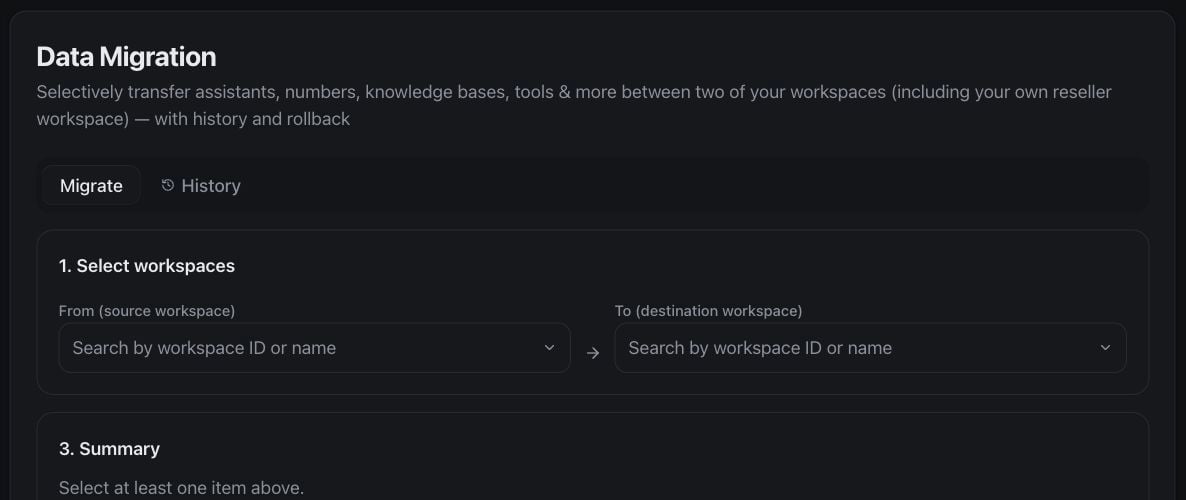
 Data migration helps authorized admins guide supported customer information into the white-label service.
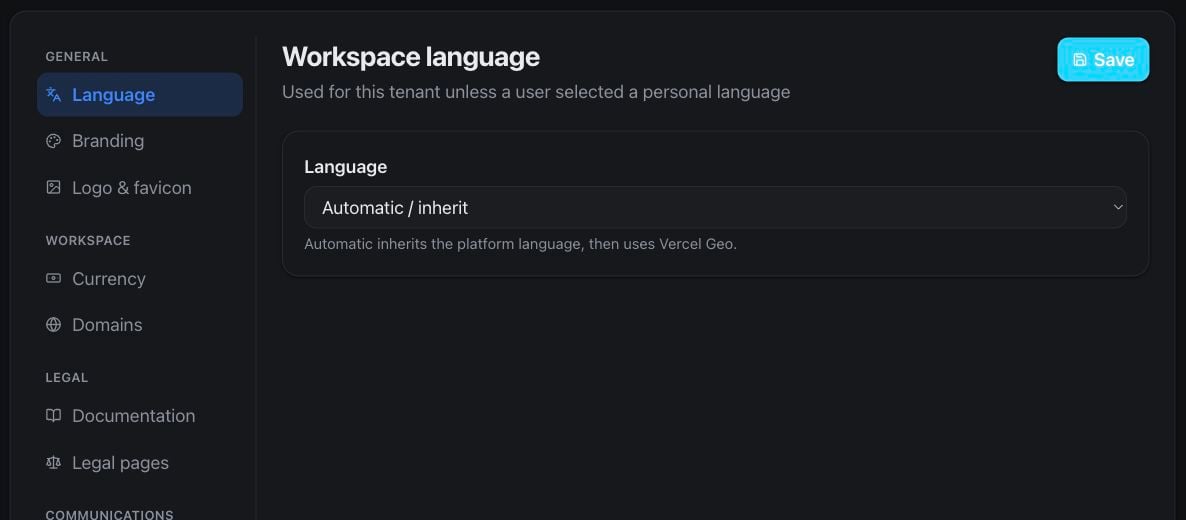
 White-label settings control the customer-facing brand, domain, and service experience.
 ## Where to go next
Go from an empty workspace to a browser test call.
Understand prompts, flows, testing, and publishing.
Plan compliant outbound conversations.
Let assistants offer and confirm available appointments.
## Where to go next
Go from an empty workspace to a browser test call.
Understand prompts, flows, testing, and publishing.
Plan compliant outbound conversations.
Let assistants offer and confirm available appointments.