A visual tour of the Famulor workspace, from your first assistant to daily operations
This tour shows the main areas your team can use in Famulor. What you see in your own workspace depends on your role and the features included in your subscription.
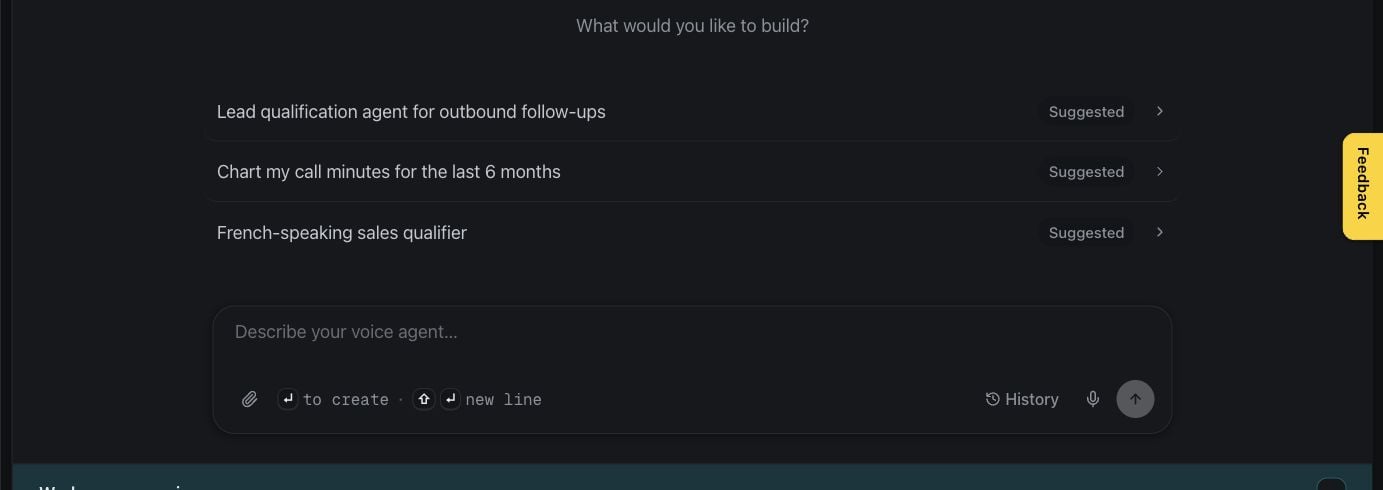
Use the sidebar in Famulor to move between these areas. You can return to the dashboard at any time for a quick overview.
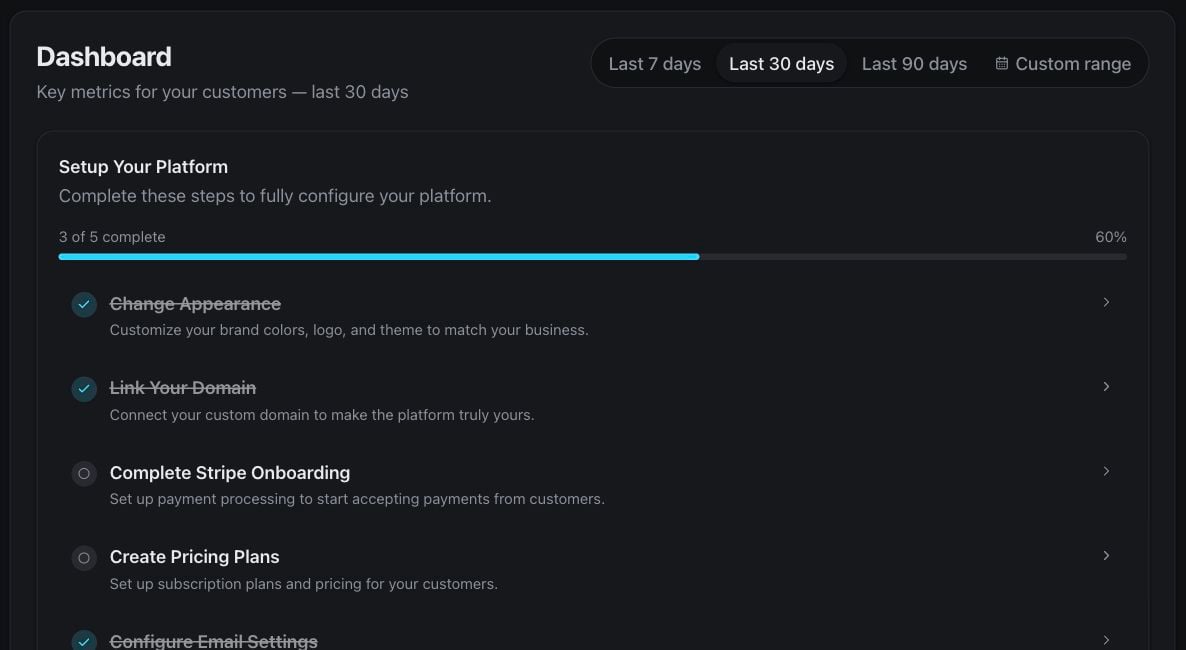
The dashboard brings your most important activity, shortcuts, and recent results together. Milian, the in-app copilot, can help you navigate the product and work with your workspace using your existing access.
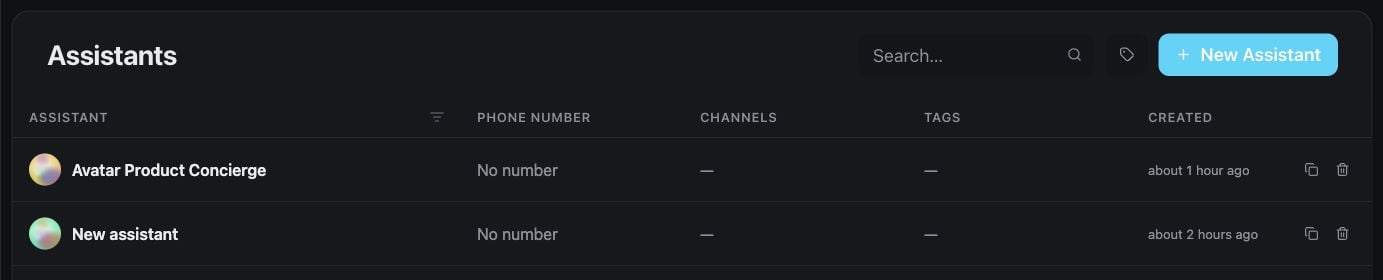
The Assistants page is the home for every voice and messaging assistant in your workspace. Create a new assistant, open an existing one, or continue refining its behavior.
Browse and manage assistants
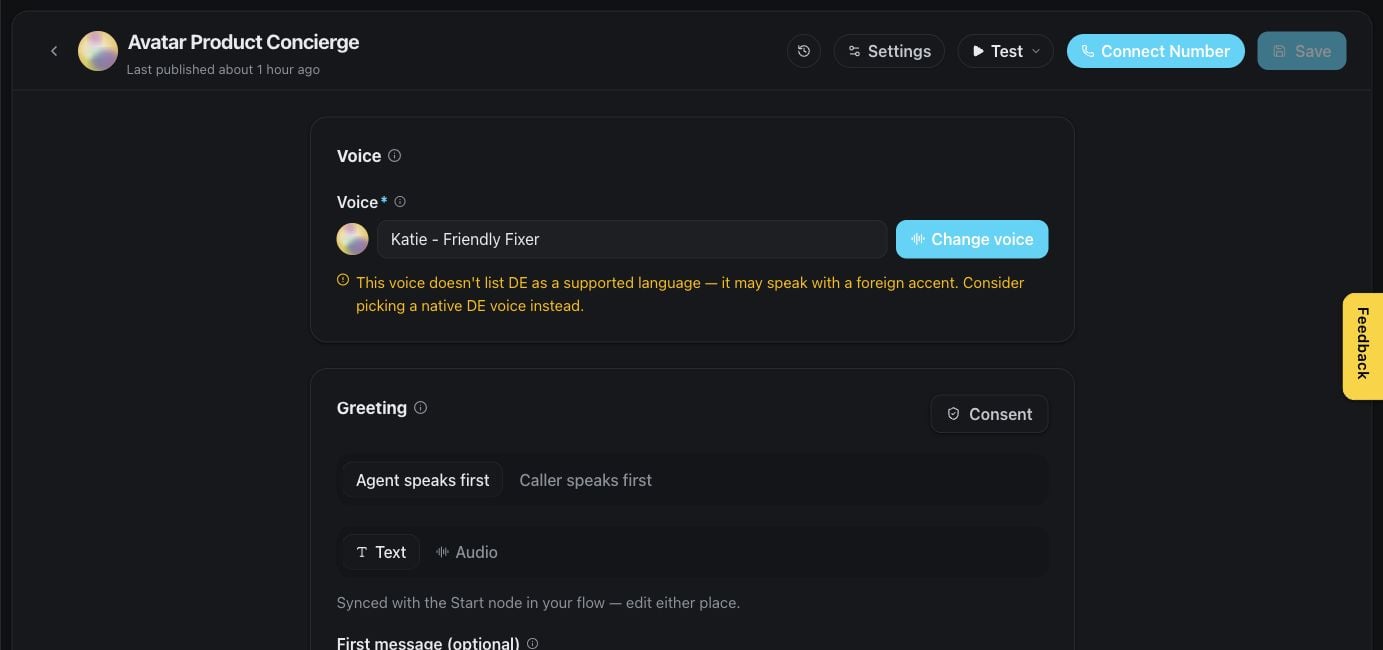
In the editor, shape the greeting and conversation instructions, test the experience, and save changes from one place.
Edit and test an assistant
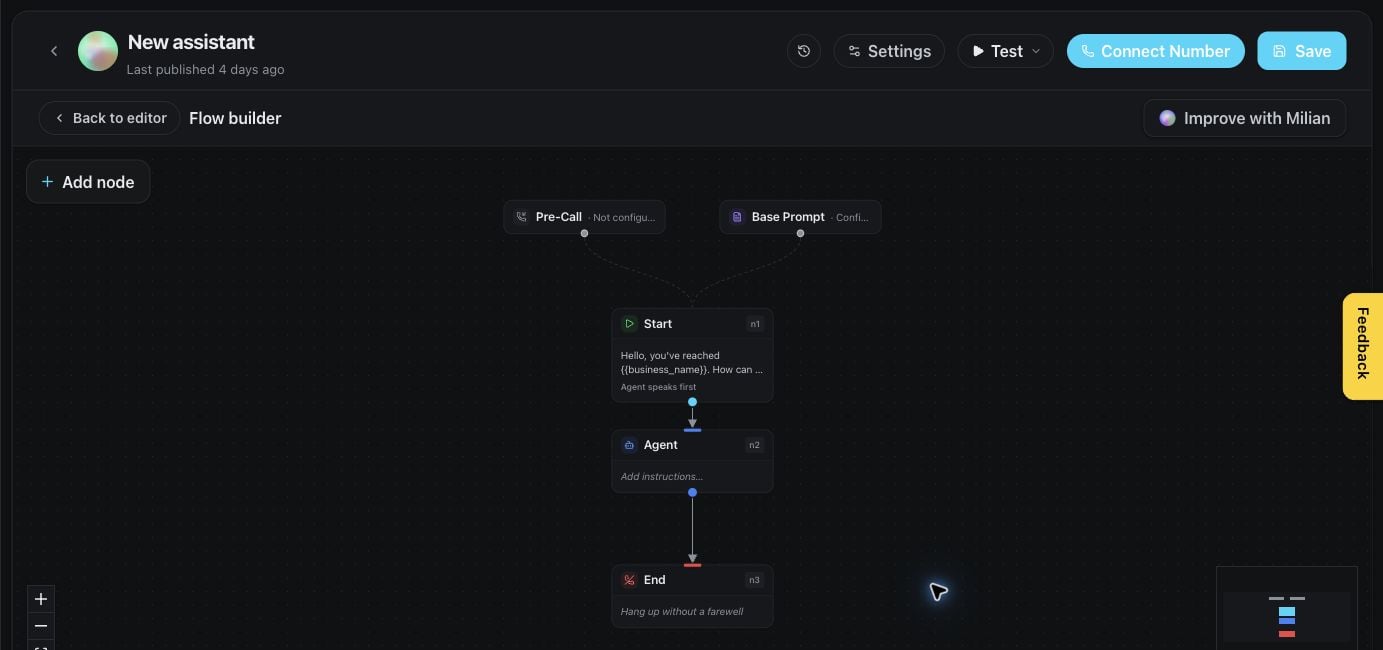
For structured conversations, the visual flow builder lets you connect steps, branches, actions, and handoffs.
Design a structured conversation flow
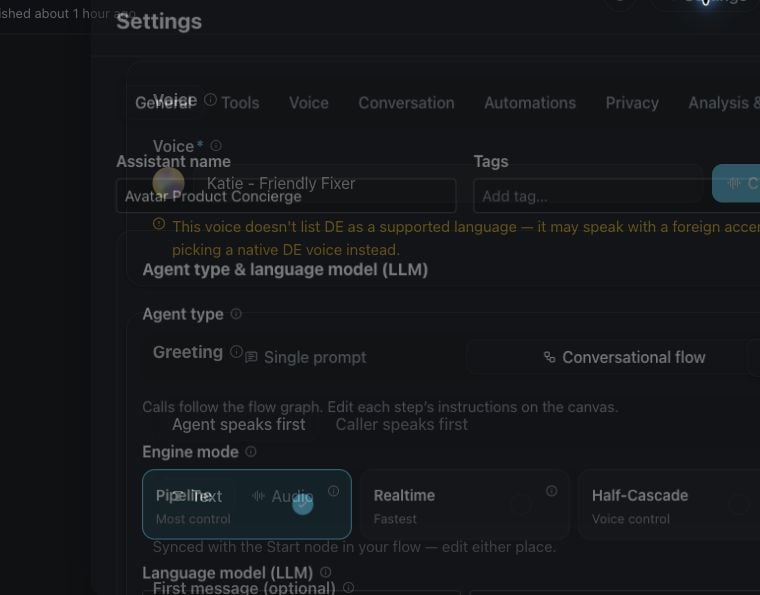
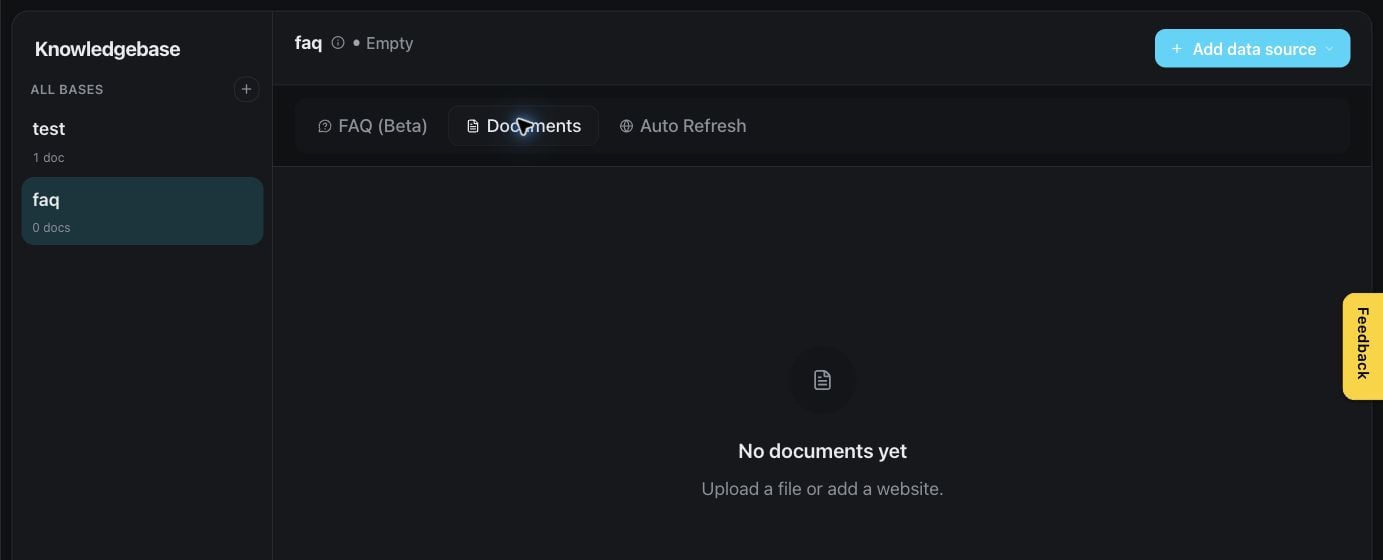
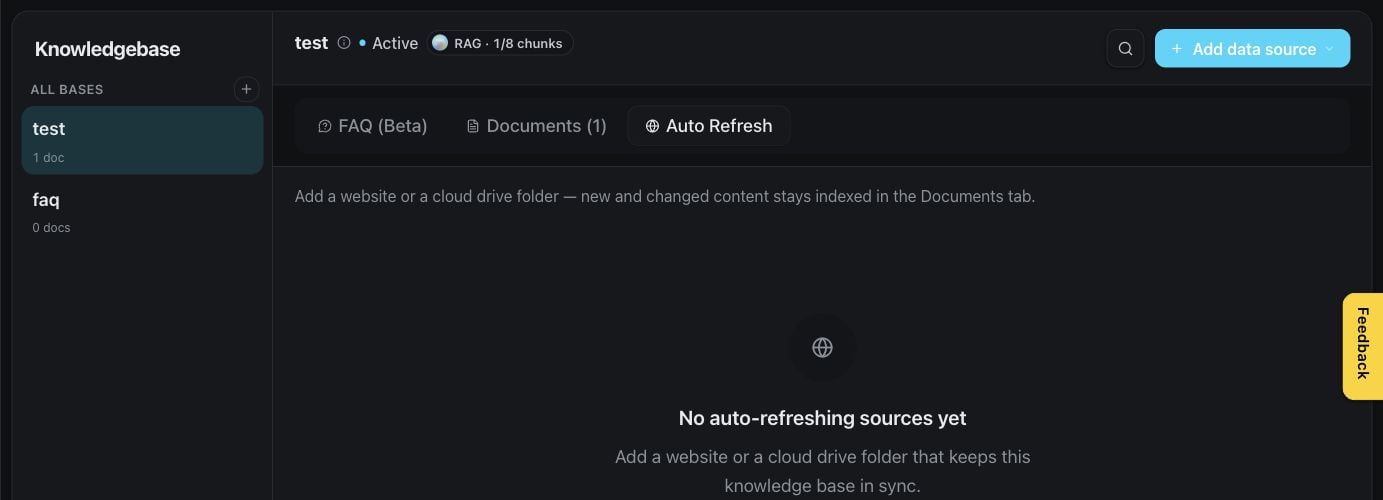
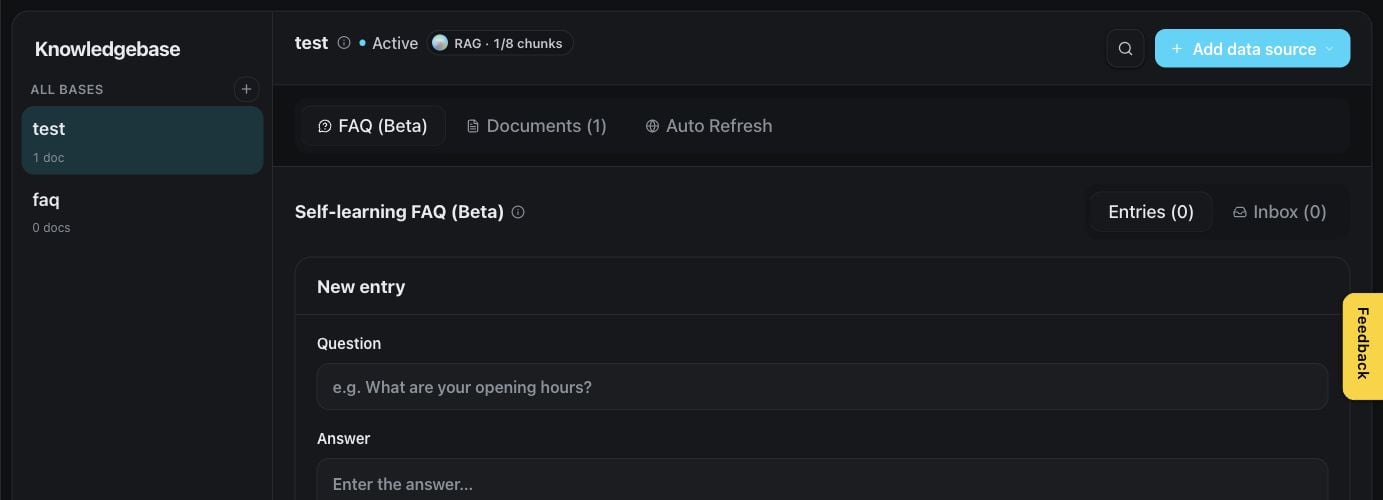
Assistant settings collect the detailed choices for voice, language, behavior, tools, knowledge, and connected channels. Available options can vary by workspace.
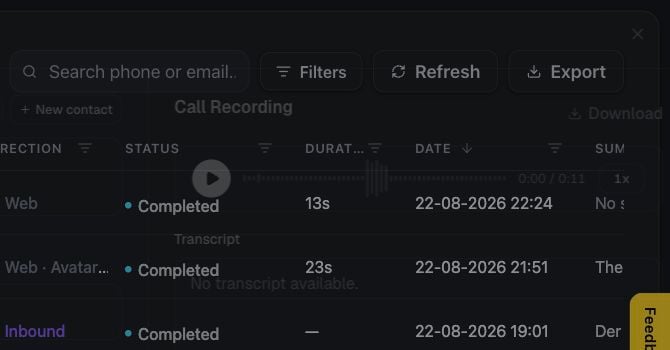
History is the shared record of calls and conversations. Filter the list to find a specific interaction, then open it for the full context.
Find past conversations
The detail view brings the transcript, outcome, collected information, and available media together, making it easier to review performance or follow up.
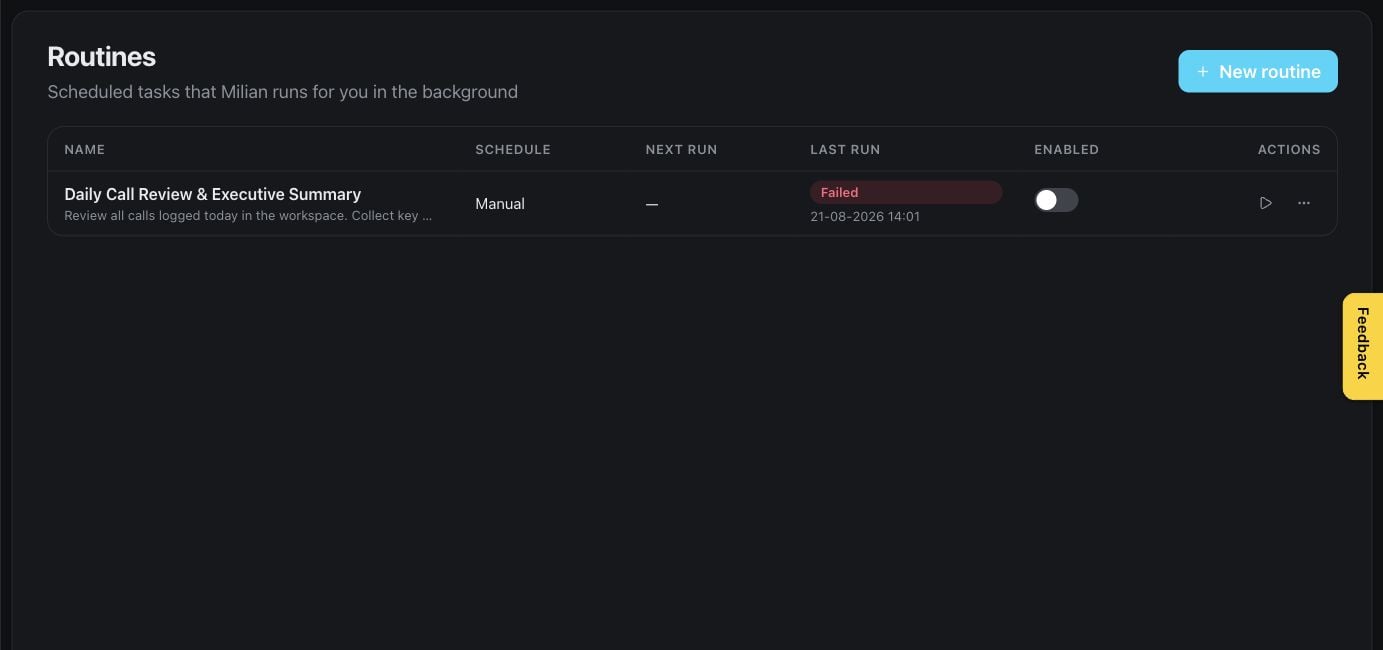
Routines package repeatable conversation behavior so it can be maintained once and reused across assistants. They are useful for common tasks such as qualification, booking, or escalation.
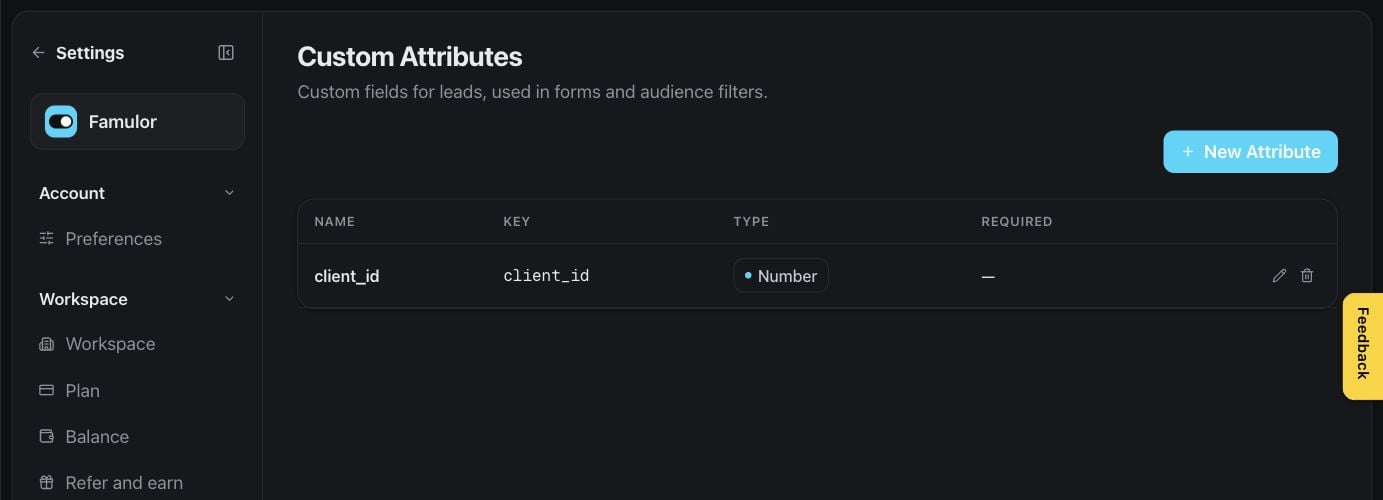
The Audience area brings contacts and the operational records around them into one place.
Browse your audience
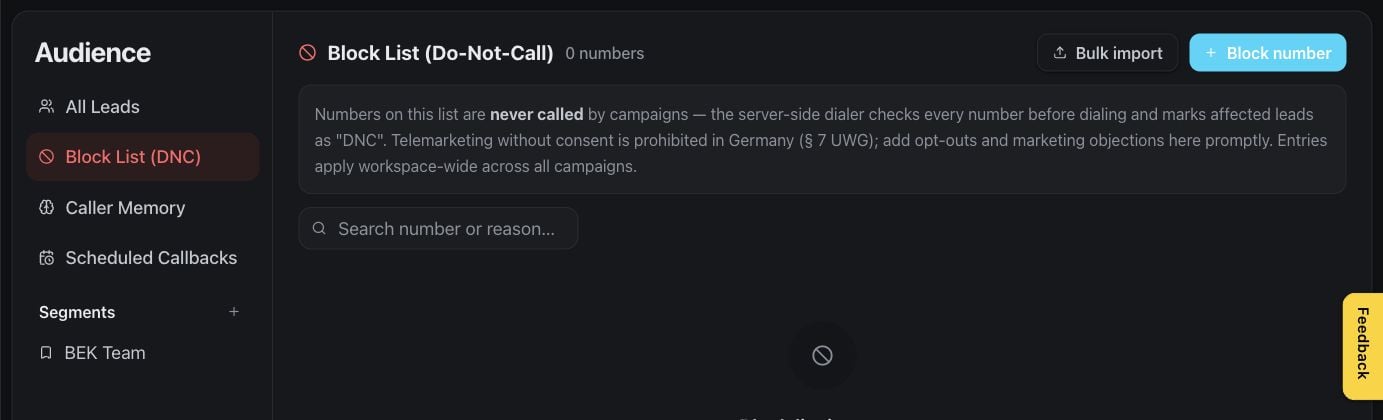
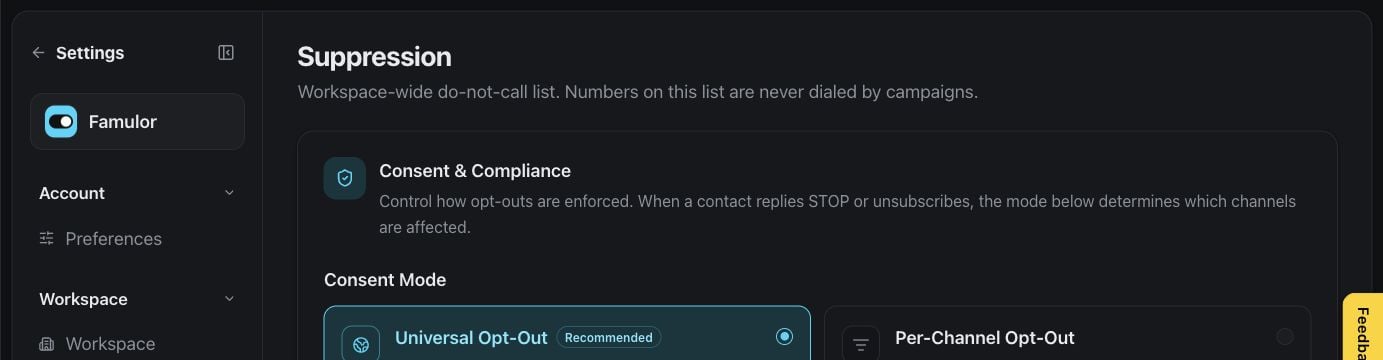
The do-not-contact list helps your team honor contact preferences. Authorized team members can review and maintain entries before outreach begins.
Maintain the do-not-contact list
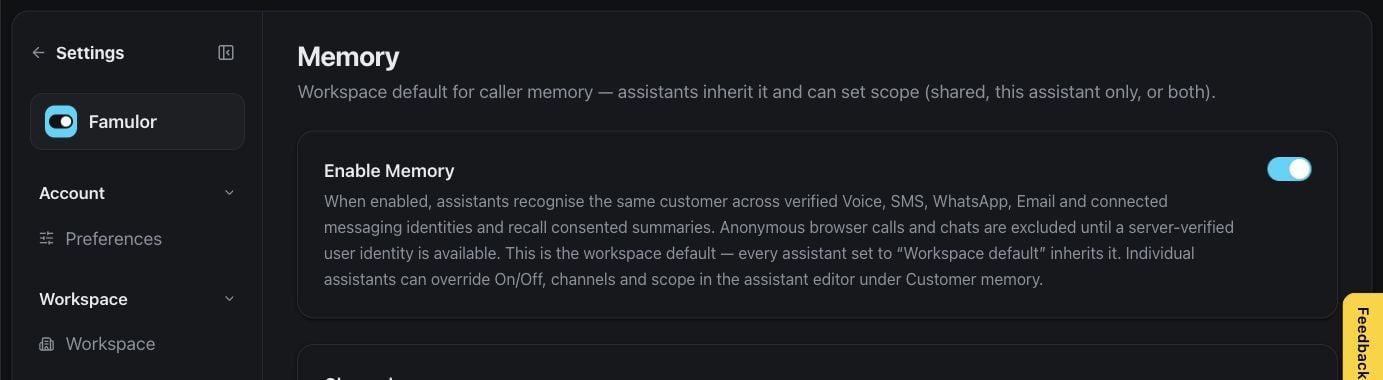
Memory records let you review what assistants may remember about a contact and manage that information when needed.
Review contact memory
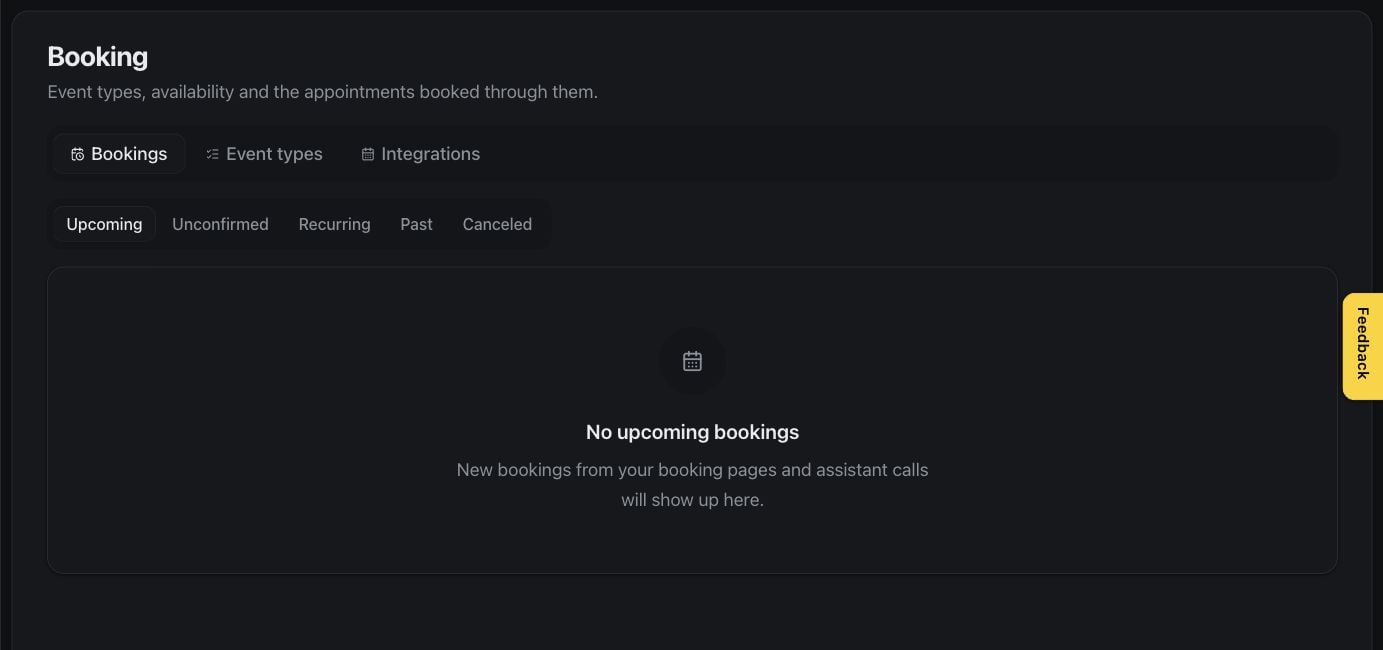
Callbacks keep requested follow-ups visible so they can be completed at the right time.
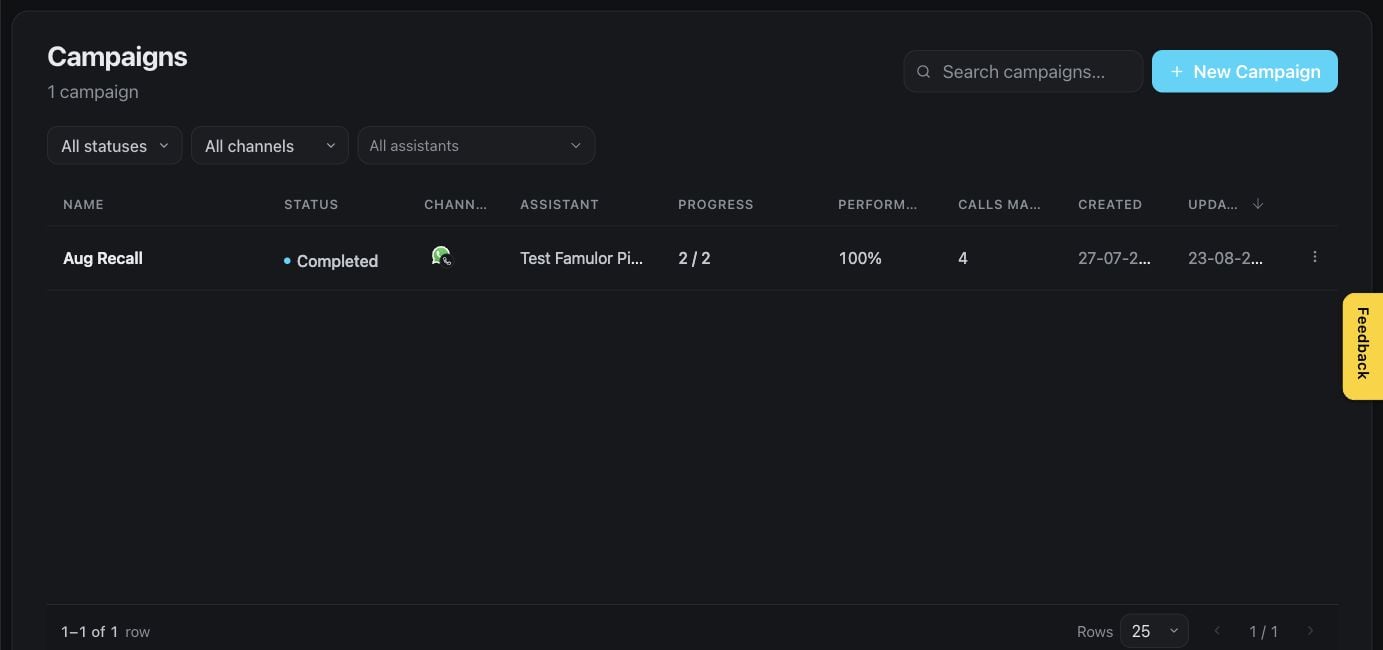
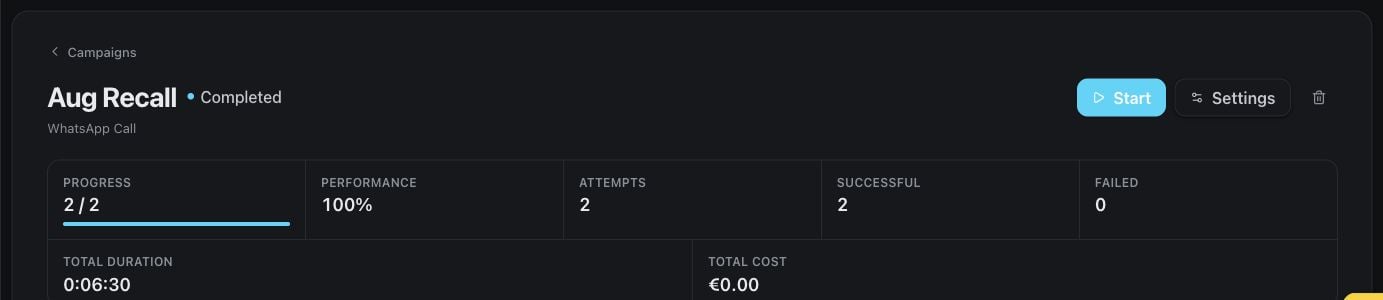
Track requested callbacks
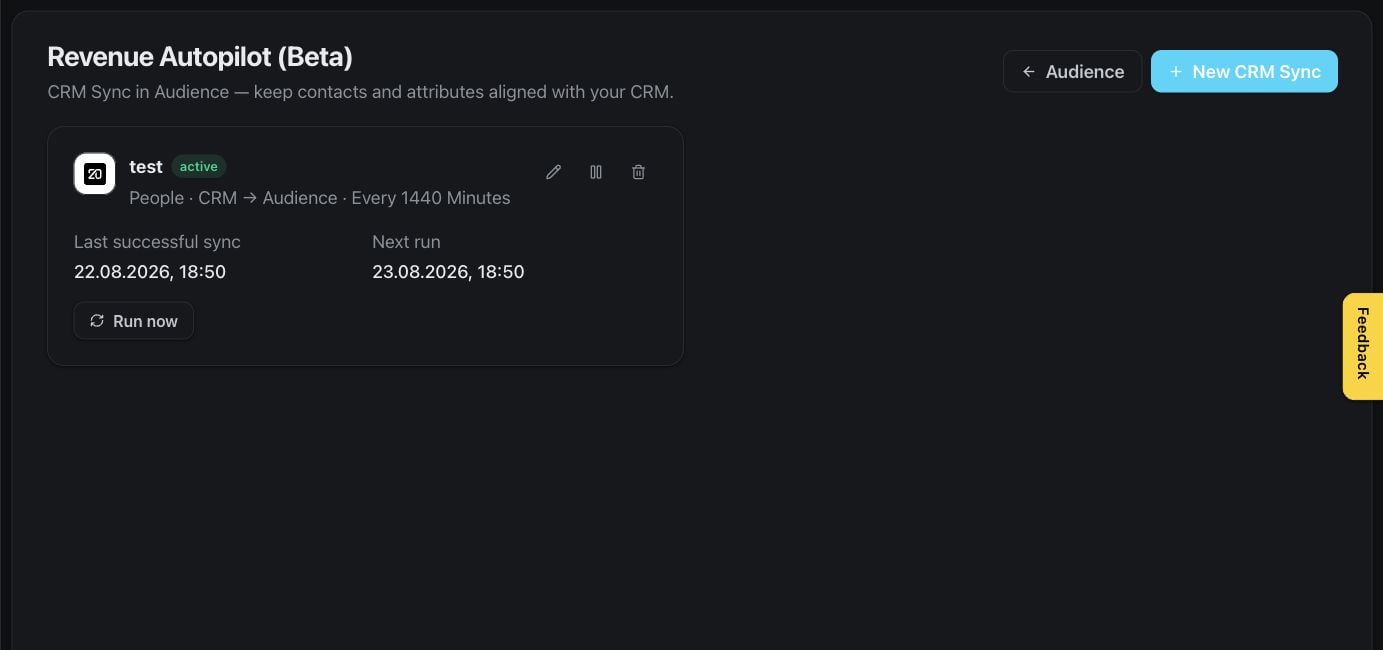
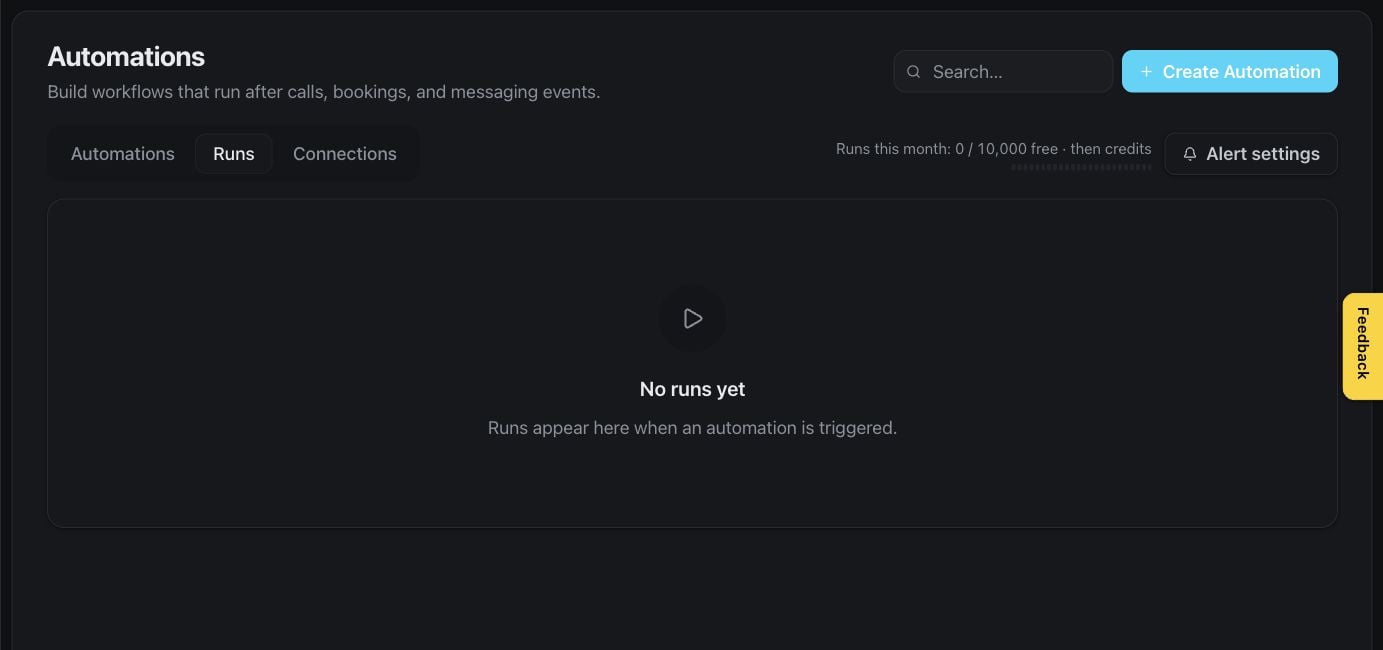
CRM sync connects contact activity with another business system. This page appears only when the feature is available to your workspace and your role permits configuration.
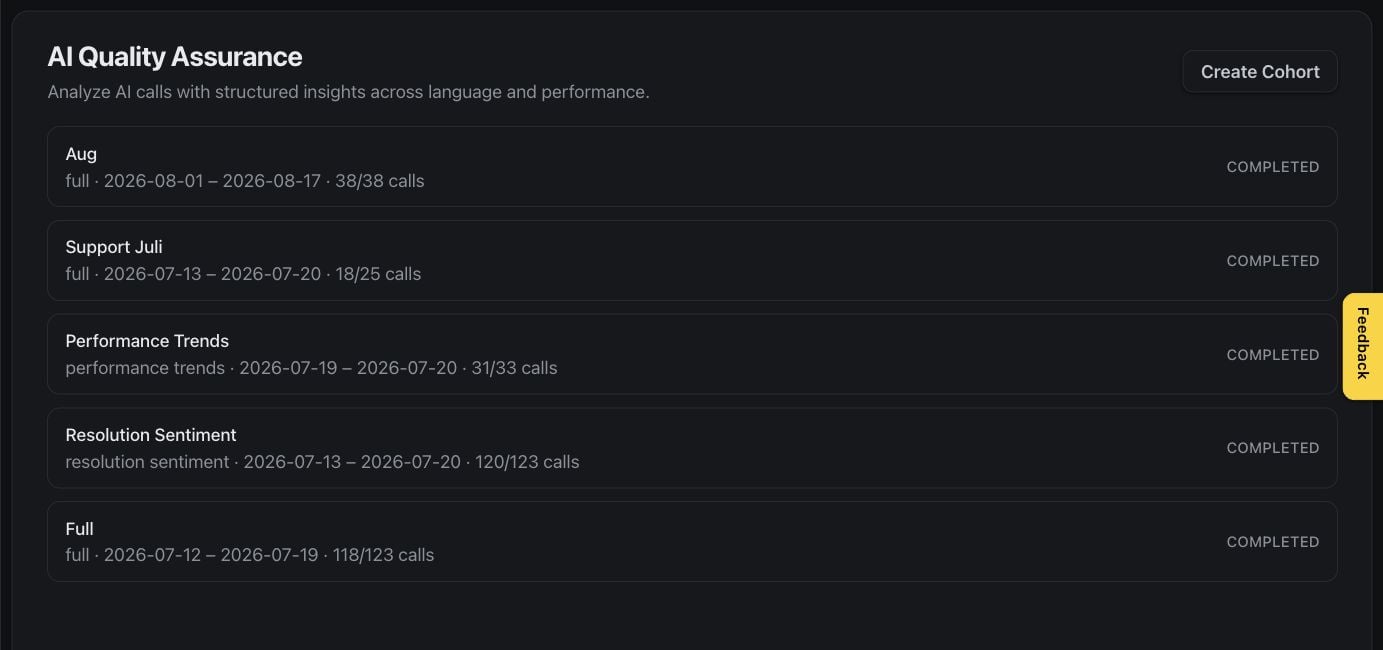
AI QA helps teams evaluate conversations consistently, find patterns, and focus coaching or assistant improvements where they matter most. Availability depends on your subscription.
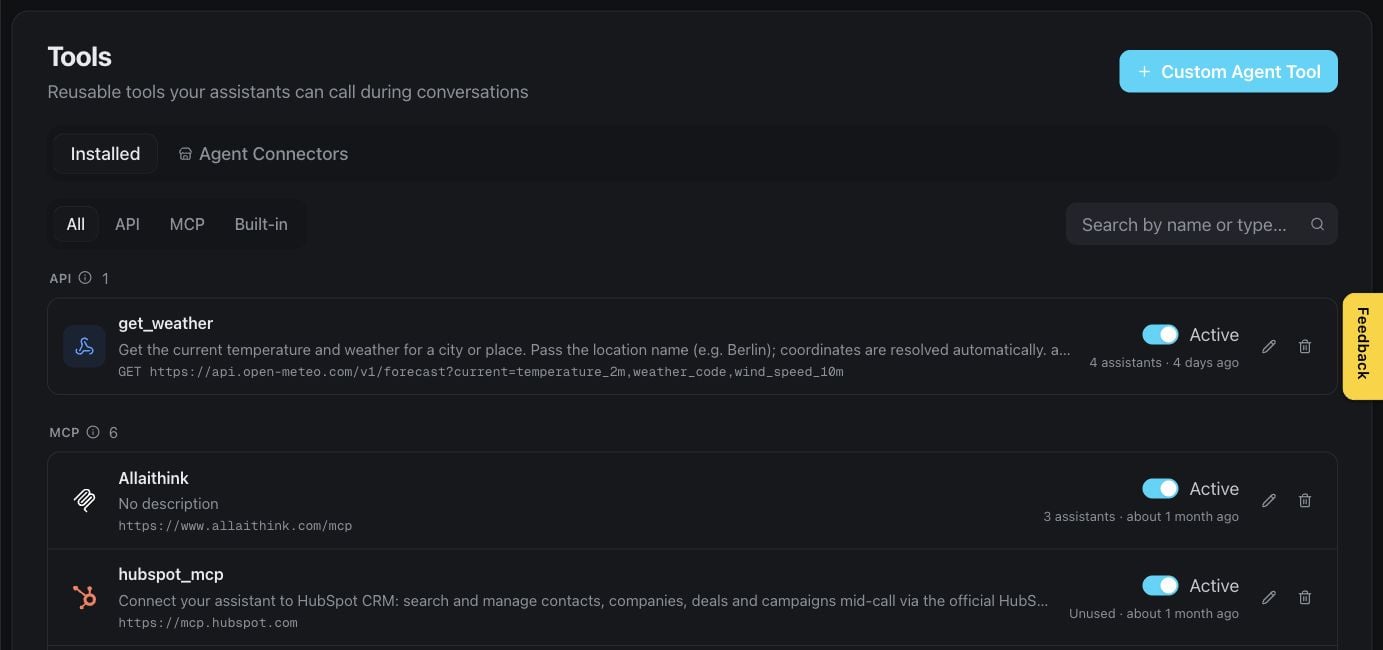
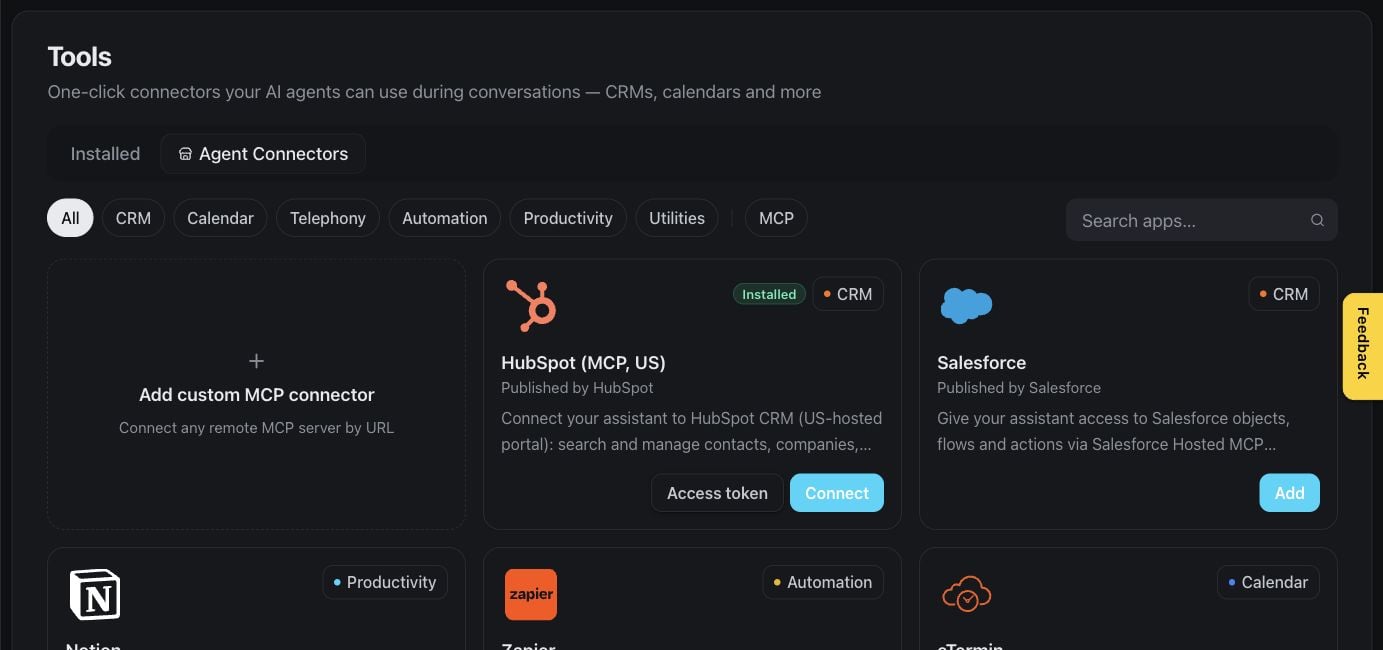
The installed view shows the capabilities already available in your workspace and where they can be managed.
Review installed tools
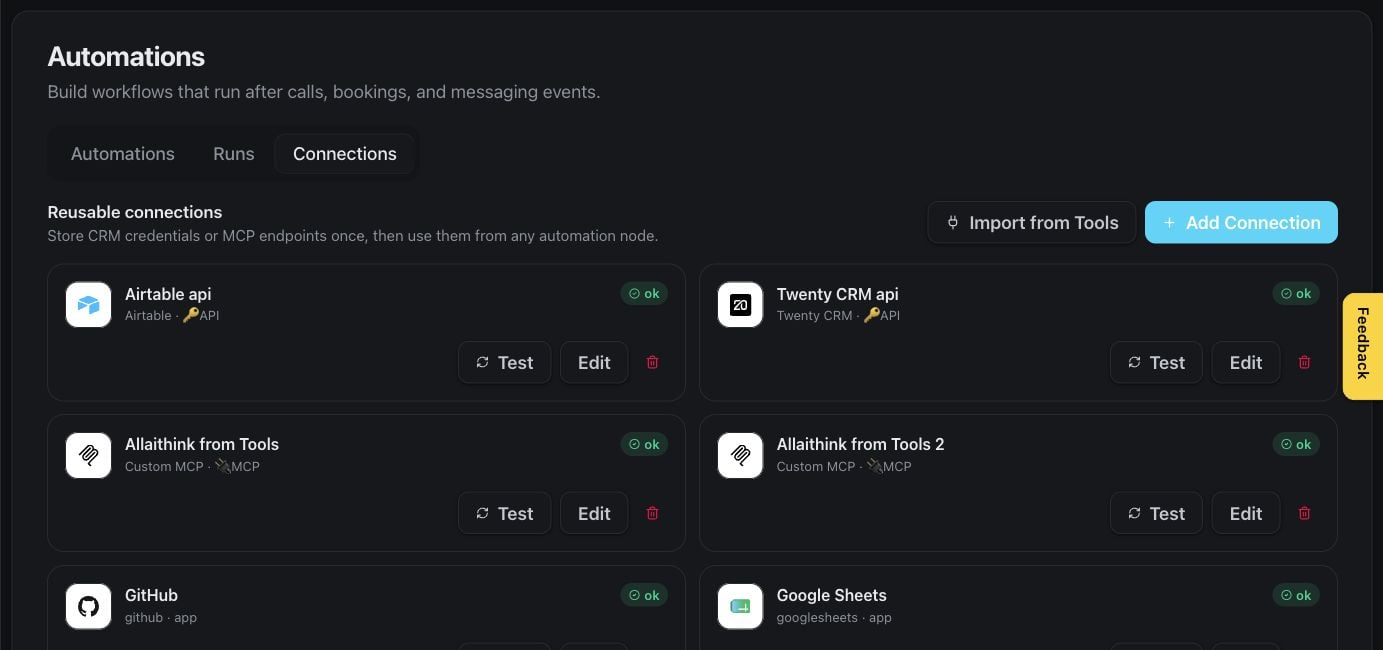
The connectors catalog lets authorized users add supported business services. Some connectors may be optional or require separate access with the connected service.
The Usage page helps workspace owners and authorized team members understand consumption over time and the balance available to the workspace.
Review workspace usage
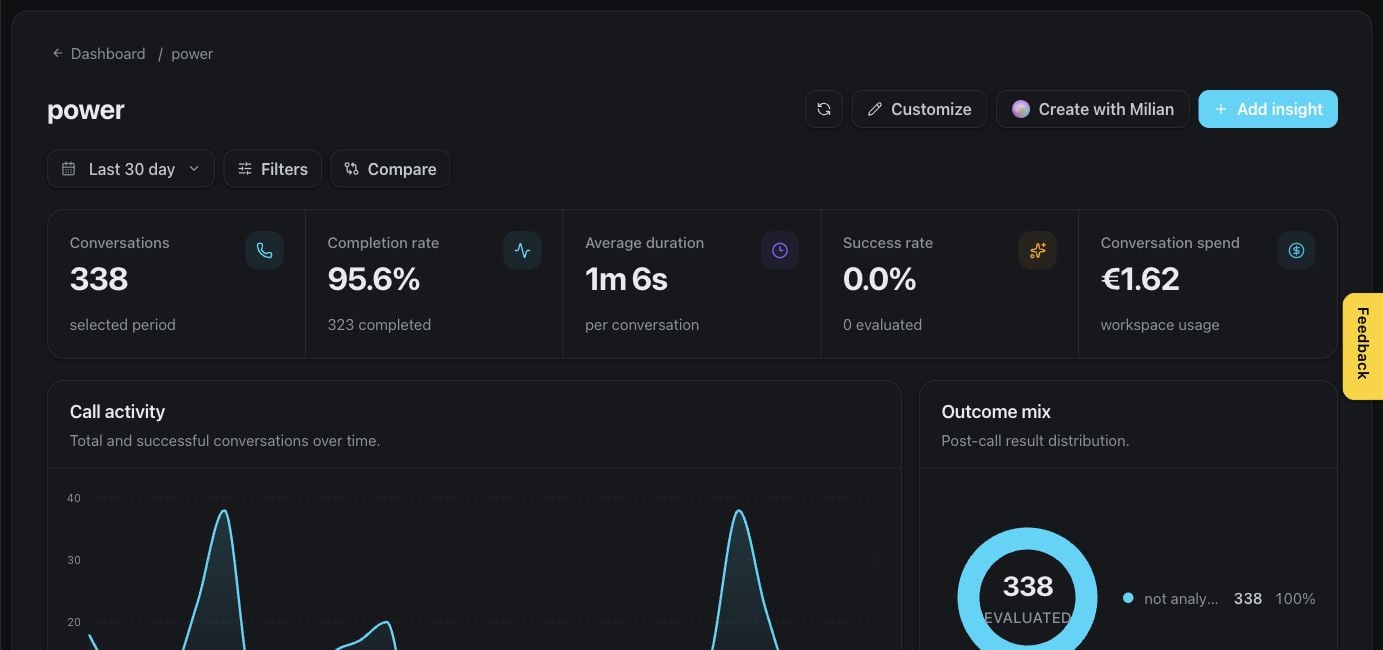
Custom dashboards turn workspace data into focused views for your team. Natural-language creation and advanced analytics may depend on your subscription.
The developer access panel is for customers who want to connect their own applications or compatible assistants to Famulor. Treat credentials as secrets and share them only with trusted team members.
Manage developer access
The audit log helps authorized admins understand important workspace changes and who made them.
The following area is available only to workspace owners and authorized admins with White Label access. Regular workspace members and white-label customers do not see these pages.
The white-label dashboard provides an overview of customer activity and the parts of your branded service that may need attention.
White-label business overview
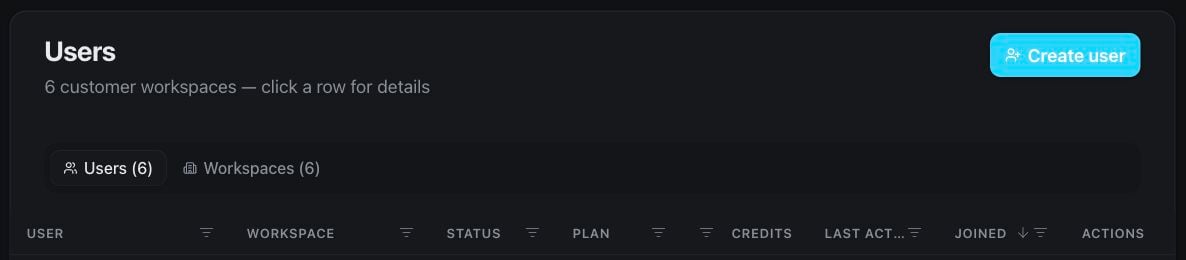
The customers list helps authorized admins find and manage the customer workspaces associated with their service.
Browse customer workspaces
Open a customer to review the information and actions relevant to that workspace.
Review a customer workspace
Plans define the packages you present to your own customers.
Manage customer plans
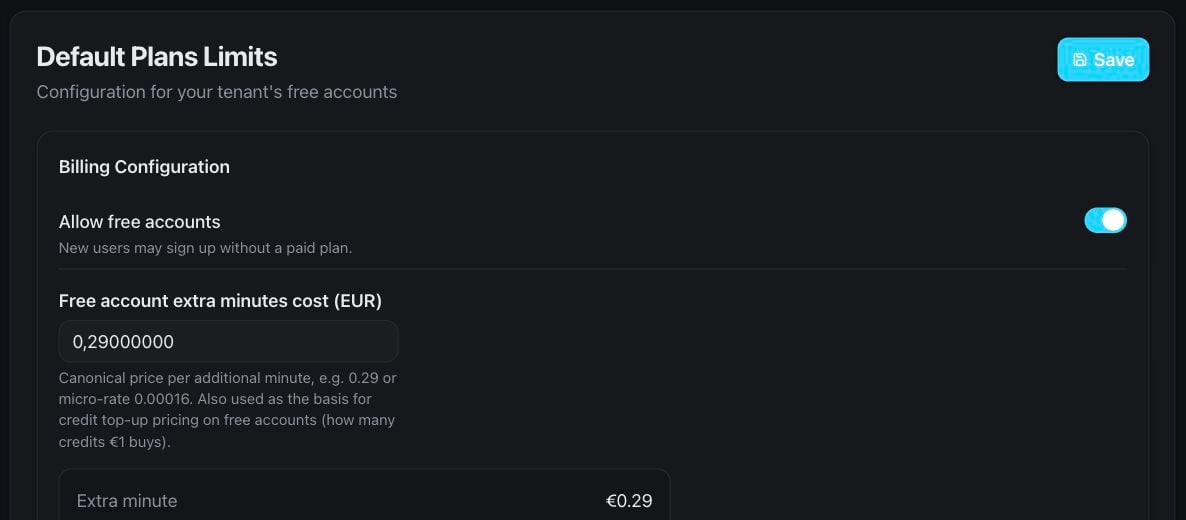
Default limits provide sensible starting boundaries for newly created customer workspaces.
Set default customer limits
Usage pricing controls how usage is presented and charged within your branded offering.
Configure customer usage pricing
Billing platform settings connect the supported billing experience for your customers. Access is restricted to authorized admins.
Manage the customer billing experience
Voice settings let you curate the choices offered to customer workspaces.
Curate available voices
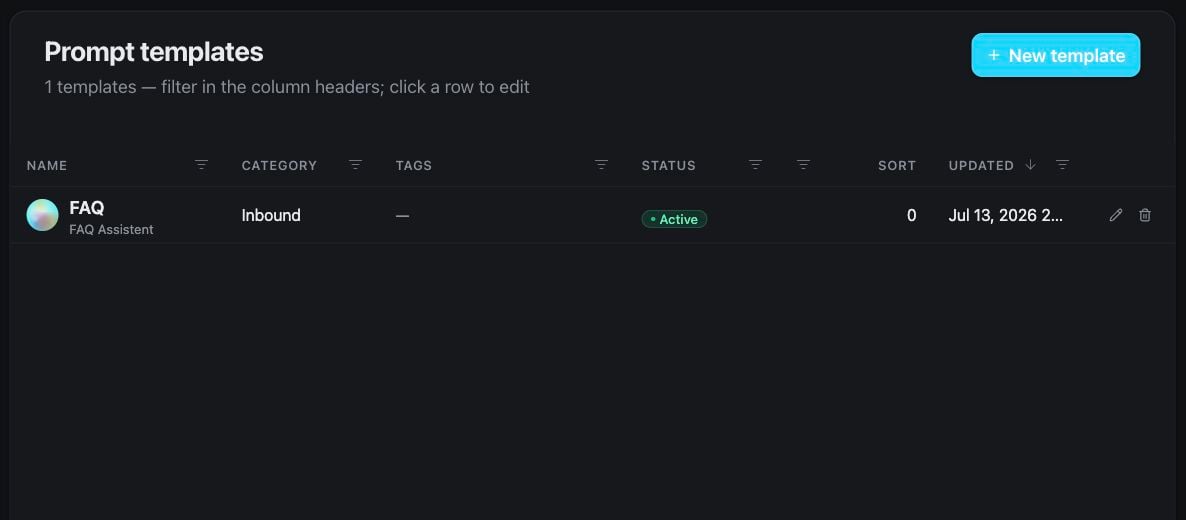
Prompt templates give customers a branded starting point for common assistant use cases.
Manage assistant prompt templates
History gives authorized admins a support-oriented view of customer conversations while respecting the access granted to their role.
Review customer conversation history
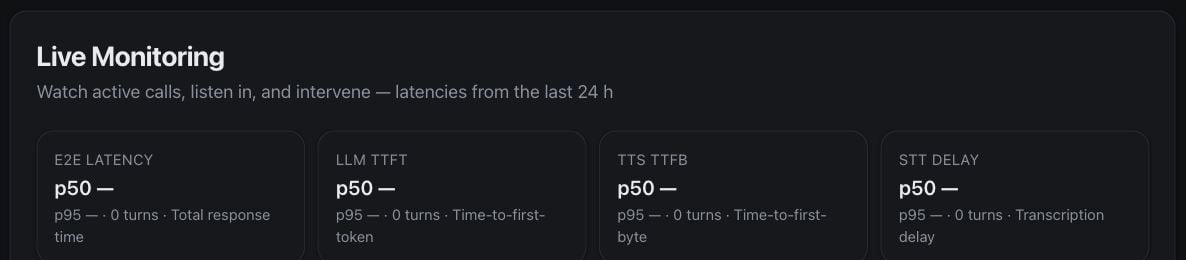
Live monitoring is an optional operational view for authorized white-label admins. Use it only in line with your organization’s privacy and access policies.
Monitor active customer conversations
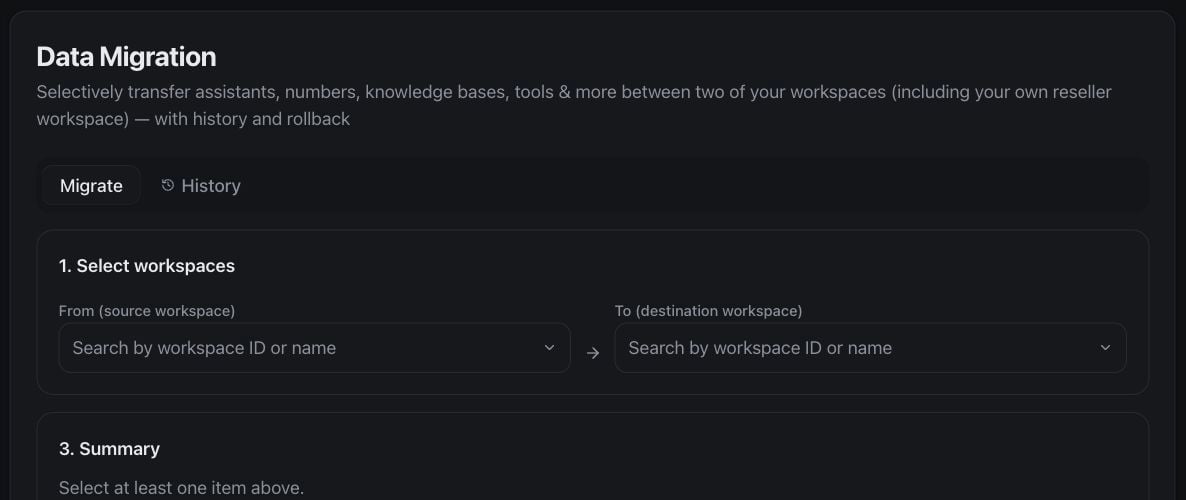
Data migration helps authorized admins guide supported customer information into the white-label service.
Manage a supported customer data migration
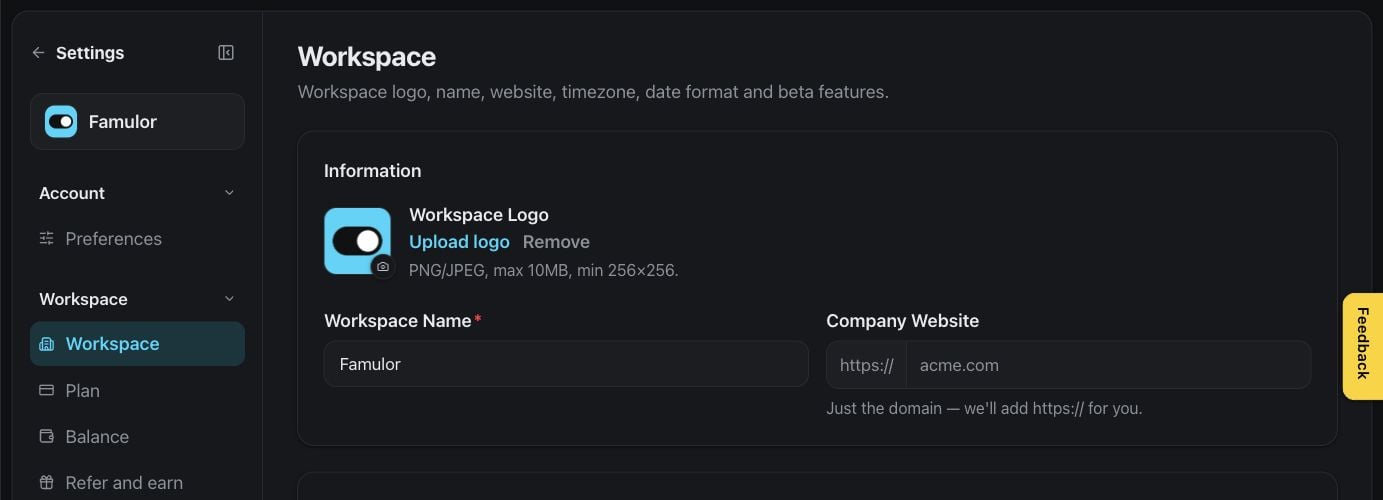
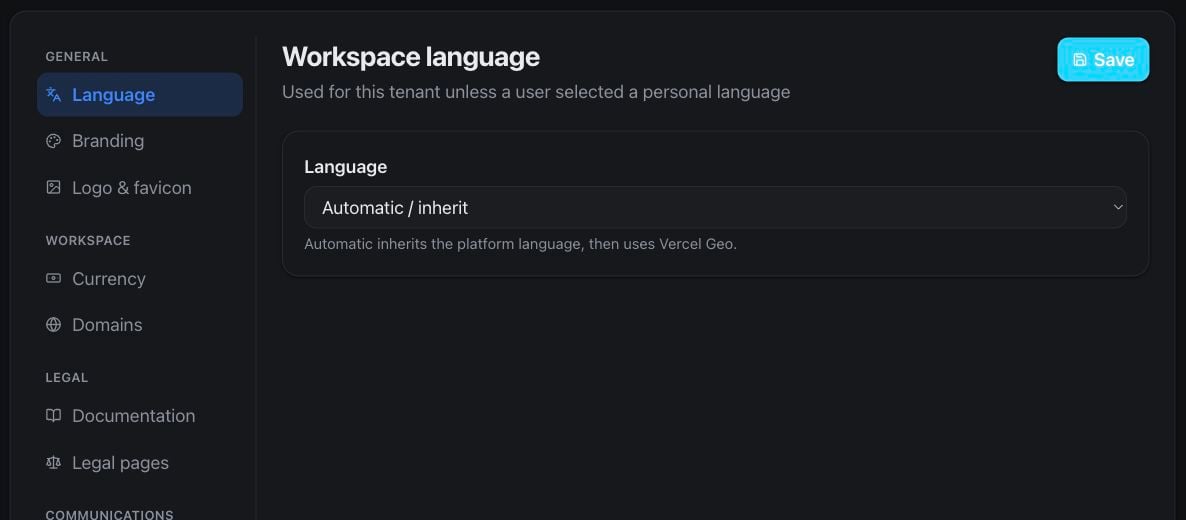
White-label settings control the customer-facing brand, domain, and service experience.